The Agent is available in Customer Studio when you build or edit an audience.
| Audience | Marketers, growth teams, and campaign managers |
| Prerequisites | Customer Studio setup |
Use the Agent in Customer Studio to build, refine, and understand audiences with natural language. Describe the audience you want, ask questions about an existing audience, or request changes. The Agent translates your input into audience filters, summaries, or analysis that you review before saving.
This page covers the Agent in the audience builder. Hightouch also offers a standalone Agents workspace for open-ended analysis, reporting, and recommendations. See Which agent should I use? to understand the differences.
What you'll learn
In this article, you'll learn how to:
- Build audiences using natural language prompts
- Explore available fields, traits, and events in your schema
- Summarize, analyze, and explore existing audiences
- Refine audience definitions through follow-up prompts
- Debug audience size changes and unexpected results
- Improve results with more specific prompts and schema metadata
- Understand how Hightouch handles data when you use the Agent
Overview
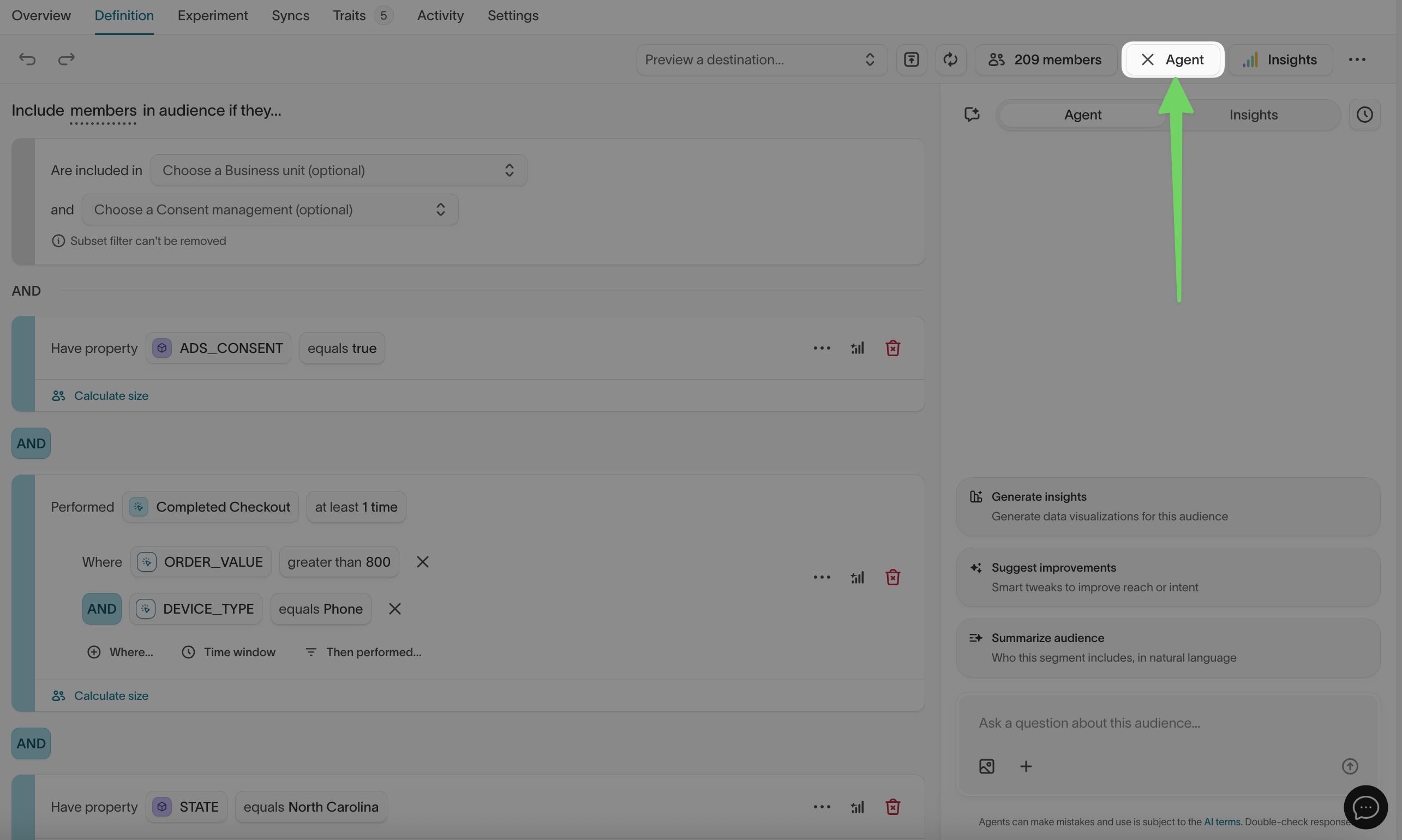
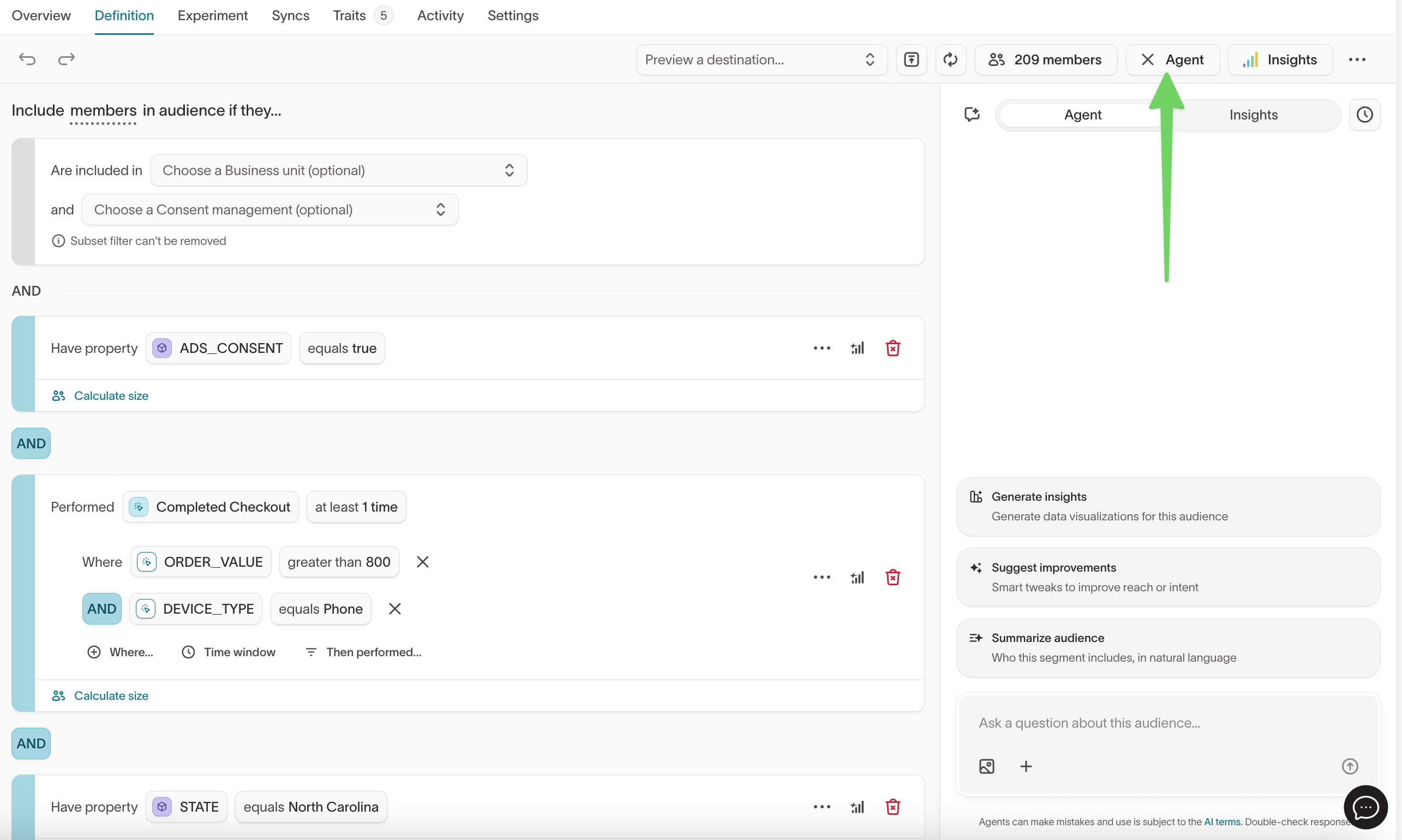
The Agent is available when you build or edit an audience in Customer Studio. Select Agent to open a chat panel alongside the visual builder.
From the Agent panel, you can:
- Build audience definitions from natural language prompts
- Ask questions about an existing audience
- Get summaries and analysis of audience composition
- Refine audience filters through follow-up prompts
- Explore available events, traits, columns, and properties
The Agent works best when your schema has clear, descriptive metadata. If the Agent can't find the right field, the most common cause is missing or unclear column descriptions. See Enrich your schema metadata.
Get started
Open the Agent
- Go to Customer Studio → Audiences.
- Create a new audience from scratch or from a template, or open an existing audience.
- Open the Definition tab.
- Select Agent.
Quick actions
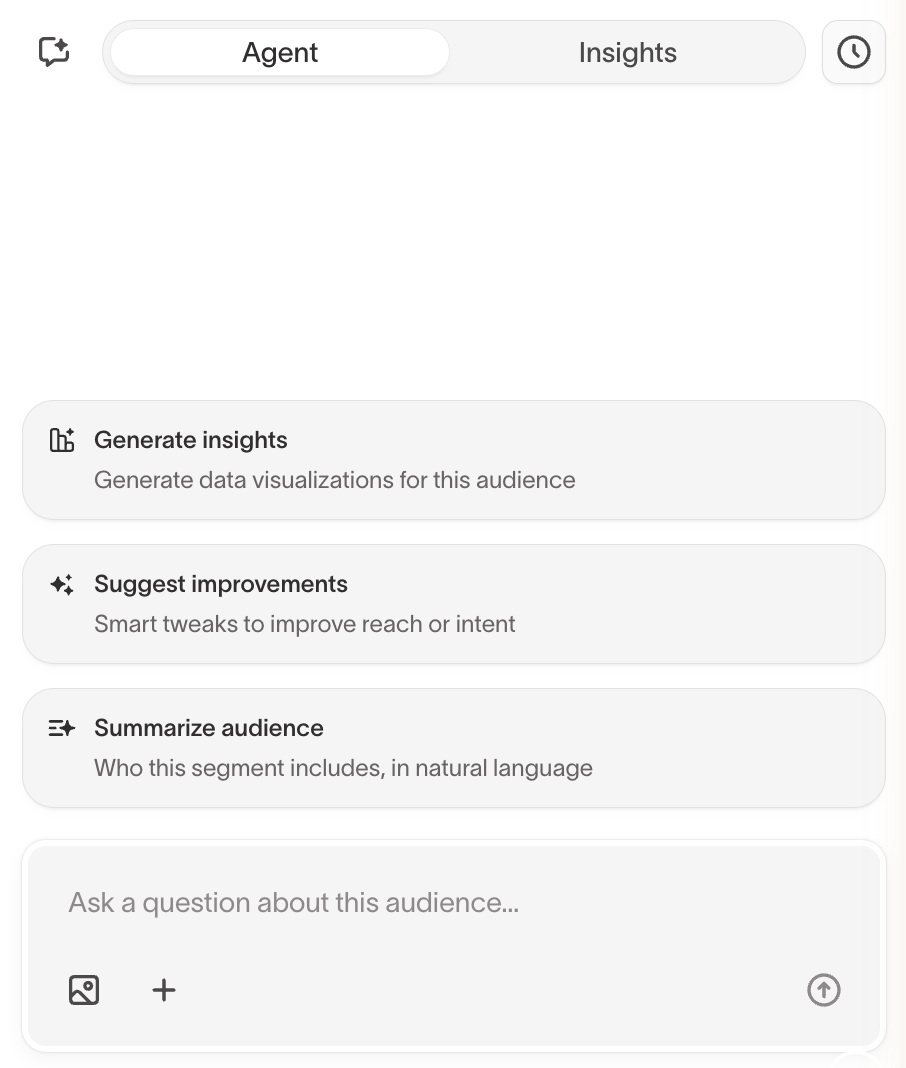
The Agent shows different quick actions depending on whether you're working with a new or existing audience. Select a quick action to start, or type your own prompt.
| Context | Sample quick actions |
|---|---|
| New audience | Create audience, Start with a template |
| Existing audience | Generate insights, Suggest improvements, Summarize audience |
Build audiences with natural language
Describe the audience you want to build, and the Agent drafts an audience definition with matching filters and conditions.
-
Open the Agent on a new or existing audience.
-
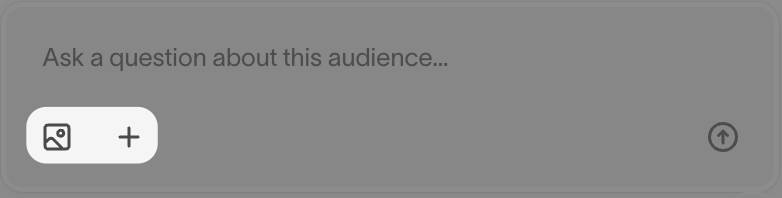
Enter a prompt that describes the audience you want to create. You can also attach images or files for additional context.
For example:
Create an audience of customers who added items to their cart in the last 30 days but did not complete an order. -
Review the audience definition in the visual builder.
-
Check that the filters and conditions match your intent.
-
If the definition needs changes, send a follow-up prompt. The Agent keeps context from the conversation, so you can refine without starting over.
Prompt patterns for common tasks
These patterns show how to phrase requests for common audience-building workflows. Include specific field names, time windows, and thresholds when you know them.
Create an audience from criteria
| What you want | Example prompt |
|---|---|
| Target a behavioral segment | Build an audience of customers who purchased at least twice in the last 90 days. |
| Target by attribute | Create an audience of users whose account type is enterprise and whose country is United States. |
| Combine behavior and attributes | Build an audience of customers who completed an order in the last 30 days and have a lifetime value over $500. |
| Use event properties | Create an audience of users who viewed a product in the Electronics category in the last 7 days. |
Modify an existing audience
| What you want | Example prompt |
|---|---|
| Add a condition | Add a filter to include only users who opened an email in the last 14 days. |
| Remove a condition | Remove the filter for country. |
| Add a suppression | Exclude anyone who unsubscribed or bounced in the past 60 days. |
| Narrow by time window | Change the purchase window from 90 days to 30 days. |
| Duplicate with changes | Create the same audience but only for users in the UK. |
Refine iteratively
The Agent keeps context from your conversation, so you can refine step by step instead of writing one complex prompt.
| Step | Example prompt |
|---|---|
| Start broad | Build an audience of active users. |
| Add specificity | Narrow it to users who logged in at least three times in the last 30 days. |
| Add a suppression | Exclude anyone who already converted. |
| Check the result | How many users match this definition? |
| Adjust | That's too narrow. Change the login threshold to at least once. |
If you don't want the Agent to change an existing filter, say so explicitly:
Add a new filter for email engagement, but don't change the purchase filter.
Explore your schema
If you're not sure which fields, traits, events, or properties are available for filtering, ask the Agent to explore your schema. This is especially useful when working with a data model you didn't set up yourself.
Find the right field
| What you want to find | Example prompt |
|---|---|
| Columns on the parent model | What columns are available on the parent model? |
| Columns related to a concept | What columns can I use to filter by age or tenure? |
| Available events | What events are available for audience filtering? |
| Properties on a specific event | What properties are available on the Order Completed event? |
| Available traits | What traits can I use in this audience? |
| Related models | What related models are connected to this parent model? |
| Values in a column | What are the distinct values in the account_type column? |
Narrow your search
If the Agent returns too many fields or you can't find what you need, narrow your request:
- By topic:
What fields relate to email engagement? - By data type:
Which columns contain dates or timestamps? - By event:
What properties does the Page Viewed event have?
When the Agent can't find a field
If the Agent says a field doesn't exist, check the following:
- The field might exist under a different name. Ask the Agent:
List all columns that contain the word "email". - The field might live on a related model rather than the parent model. Ask:
What related models are available, and what columns do they have? - The field might not be exposed in your schema. Column descriptions and event labels are set during schema configuration. If a field is missing, ask your data team to check whether it's included in the parent model or related models.
The Agent reads from your schema metadata — model names, column descriptions, event labels, and related model definitions. Fields without descriptions are harder for the Agent to find and use correctly.
Understand and analyze audiences
Use the Agent to get plain-language explanations and analysis of an audience without writing queries or leaving the builder.
Select a quick action like Summarize audience or Generate insights, or enter your own prompt:
Summarize this audience in 30 words or less for a business user.
Which conditions are excluding the most members from this audience?
Break down this audience by most recent order value.
Analysis prompts
| What you want | Example prompt |
|---|---|
| Plain-language summary | Explain what this audience targets in one sentence. |
| Size breakdown | How many users match each condition in this audience? |
| Exclusion analysis | Which filter is excluding the most members? |
| Segment comparison | How does this audience compare to all customers in terms of average order value? |
| Condition inspection | What does the third filter in this audience do? |
Agent responses can be long. For shorter output, include a word limit or
format in your prompt: Summarize this in under 30 words.
Refine and improve audiences
Use the Agent to update an existing audience definition through follow-up prompts. Describe the change you want, then review the updated definition in the visual builder.
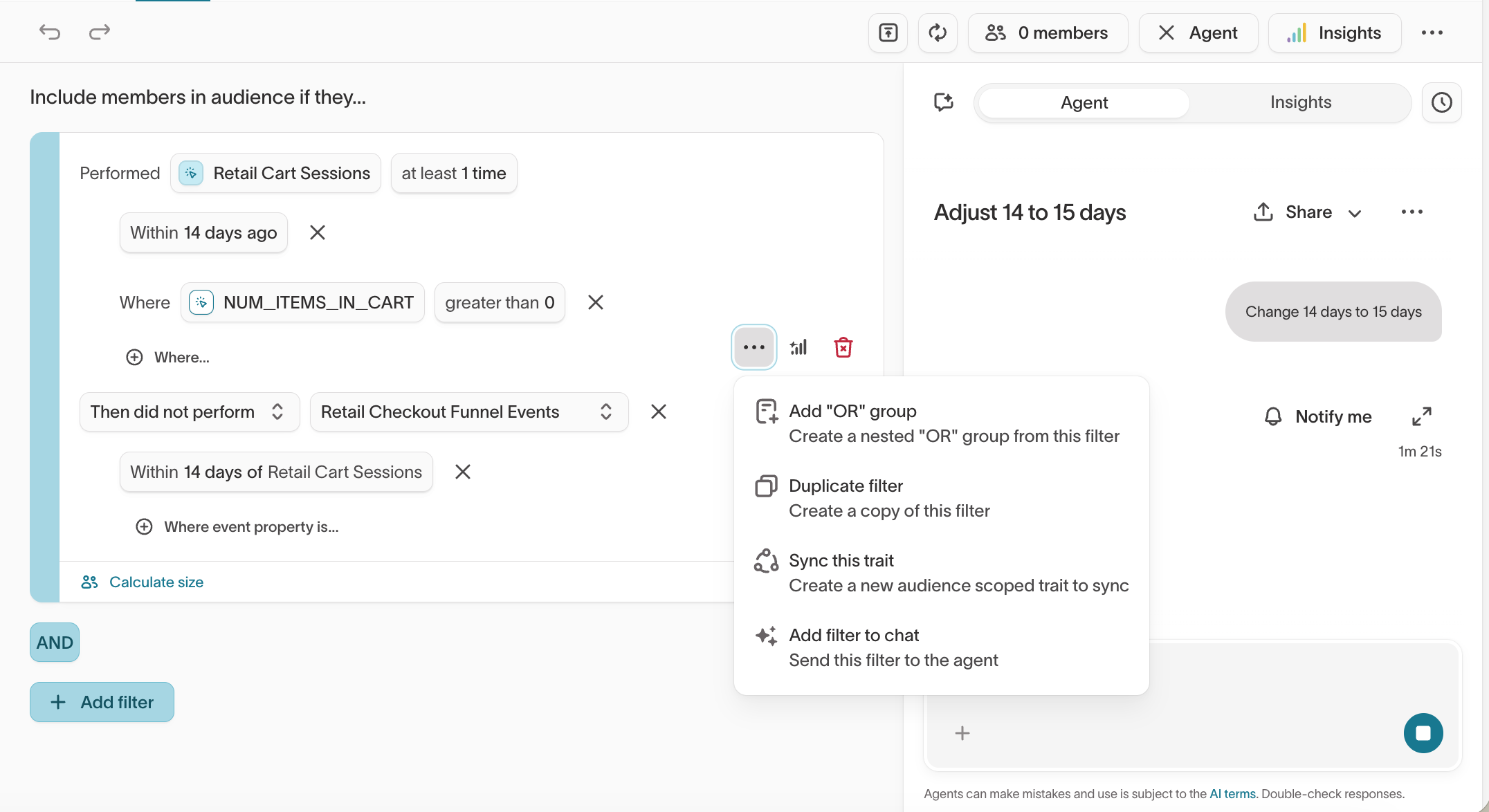
You can also send a specific filter to the Agent from the visual builder. Select the more options menu on any filter and choose Add filter to chat.
Apply or undo changes
When the Agent suggests changes to your audience definition:
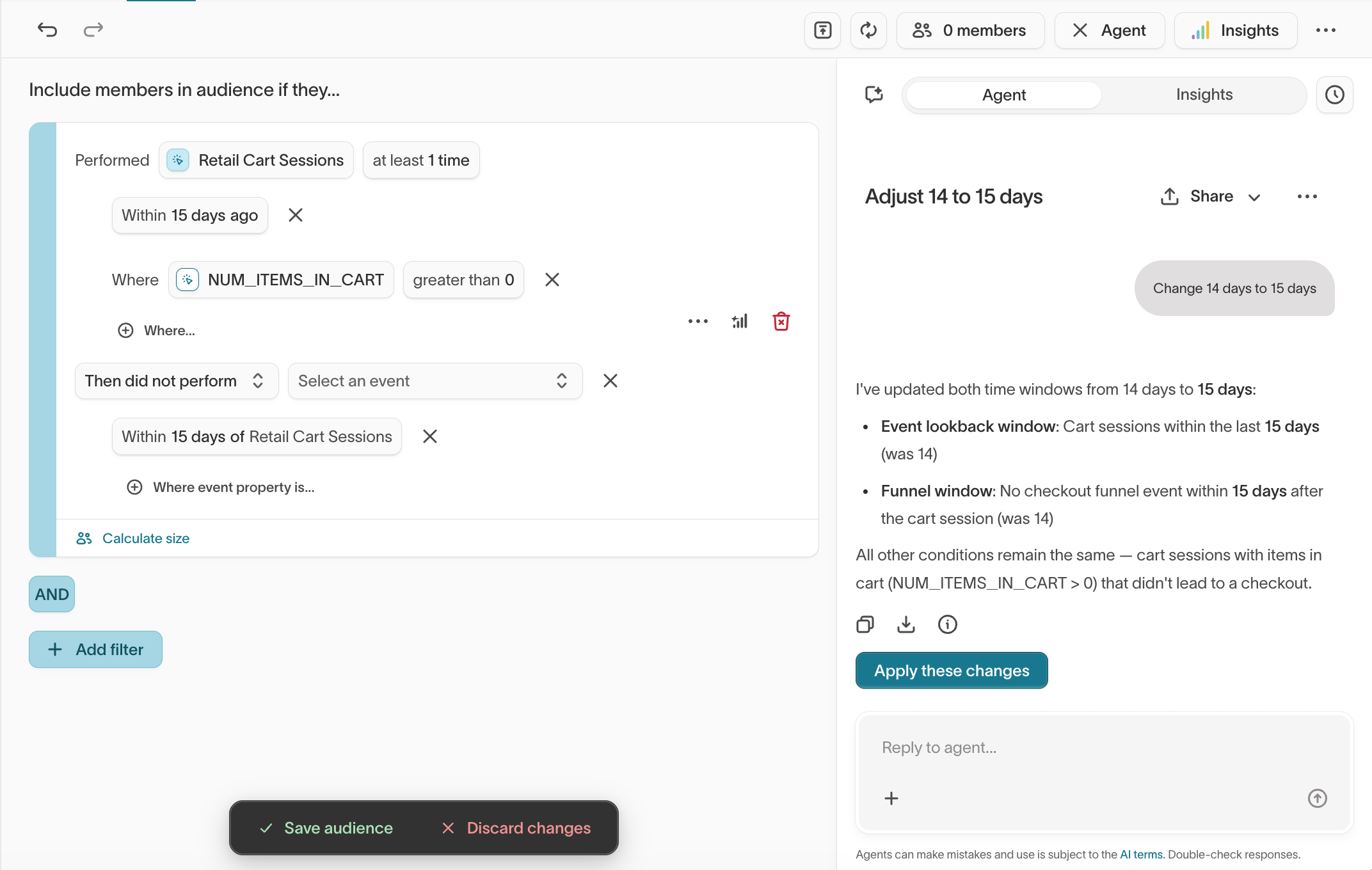
- Select Apply these changes in the Agent panel to update the visual builder.
- Review the updated filters and conditions in the visual builder.
- Select Save audience to keep the changes, or Discard changes to revert to the original definition.
If you've already applied changes, select Undo in the banner at the top of the builder to revert before saving.

Troubleshoot audience issues
Use these patterns when an audience isn't behaving the way you expect. The Agent can help you diagnose size changes, understand exclusions, and identify configuration issues.
Audience is smaller than expected
Ask the Agent to break down which conditions are filtering out the most users:
Which filter is removing the most members from this audience?
How many users match each individual condition?
Common causes of unexpectedly small audiences:
- Overlapping conditions — Two filters that individually match many users can combine to match very few. Ask the Agent:
How many users match both the purchase filter and the email filter together? - Time windows too narrow — A 7-day window captures fewer users than a 30-day window. Ask:
What if I change the time window to 30 days? - Missing data — If a column contains null values, users with null values are excluded. Ask:
How many users have a null value for this field?
Audience size changed unexpectedly
If an audience grew or shrank and you're not sure why:
When did this audience last change in size, and by how much?
What could explain a drop in this audience over the last week?
Common causes:
- Upstream data changes — The source data in your warehouse changed. Check whether recent data loads added, removed, or updated rows.
- Schema or relationship changes — A related model or trait definition changed, which affected filter evaluation.
- Time-based filters — Rolling time windows like "last 30 days" naturally shift which users qualify.
Agent gives an error or can't complete the request
If the Agent returns an error or says it can't complete your request:
- Unsupported data type — Some column types can't be used in filters directly. Ask:
What data type is the [column name] column?If the column type is unsupported, you may need to create a computed trait or ask your data team to transform the column upstream. - Cross-model limitations — The Agent works within the context of the current audience's parent model and its related models. It can't query across separate parent models or access data from other audiences.
- Query timeouts — If analysis queries take too long, try narrowing the scope:
Analyze the first three conditions only.
When to use the Agent vs. the standalone Agents chat
The audience Agent works within the context of a single audience: building, editing, analyzing, or debugging one audience definition using the schema already loaded.
For broader tasks — campaign strategy, cross-audience comparisons, reporting, or questions that go beyond the current audience's schema — use Agents.
Tips for better results
Enrich your schema metadata
The Agent uses your schema metadata — model names, column descriptions, and event labels — to understand your data. Clear, descriptive metadata improves the accuracy of Agent responses more than any other factor.
To review and update your schema metadata, go to Customer Studio → Schema. Add or update:
- Column descriptions — Describe what each column contains in plain language.
- Event labels — Give events descriptive names that match how your team talks about them.
- Related model names — Name related models after the real-world objects they represent.
Be specific
Instead of Find my best customers, try:
Find customers who completed at least 3 orders in the last 90 days with an average order value over $100.
Include time windows, thresholds, and the specific events or filters you want. If you don't want the Agent to modify an existing filter, say so explicitly.
Ask about what's available before building
If you're new to a data model, start by exploring what's available before building the audience:
What events and properties are available for audience filtering?
What traits can I use?
This helps you write more precise prompts and avoids building on fields that don't exist.
Review before saving
Always review the audience definition in the visual builder before saving. The Agent can make mistakes, especially with complex logic, vague prompts, or schema fields with unclear names.
AI and data privacy
How data is processed
When you use the Agent, Hightouch sends relevant audience context to the AI model so it can generate a response. This context can include attributes, behavior signals, and schema metadata.
This data is:
- Not retained after the response is generated
- Not used to train or fine-tune models made available to other customers
- Governed by Hightouch's AI Terms of Service Addendum
Chat privacy
Your conversations with the Agent are private to you. Other team members can't see your audience-specific chats.