
Power internal tools, in-app experiences, and more
Setup
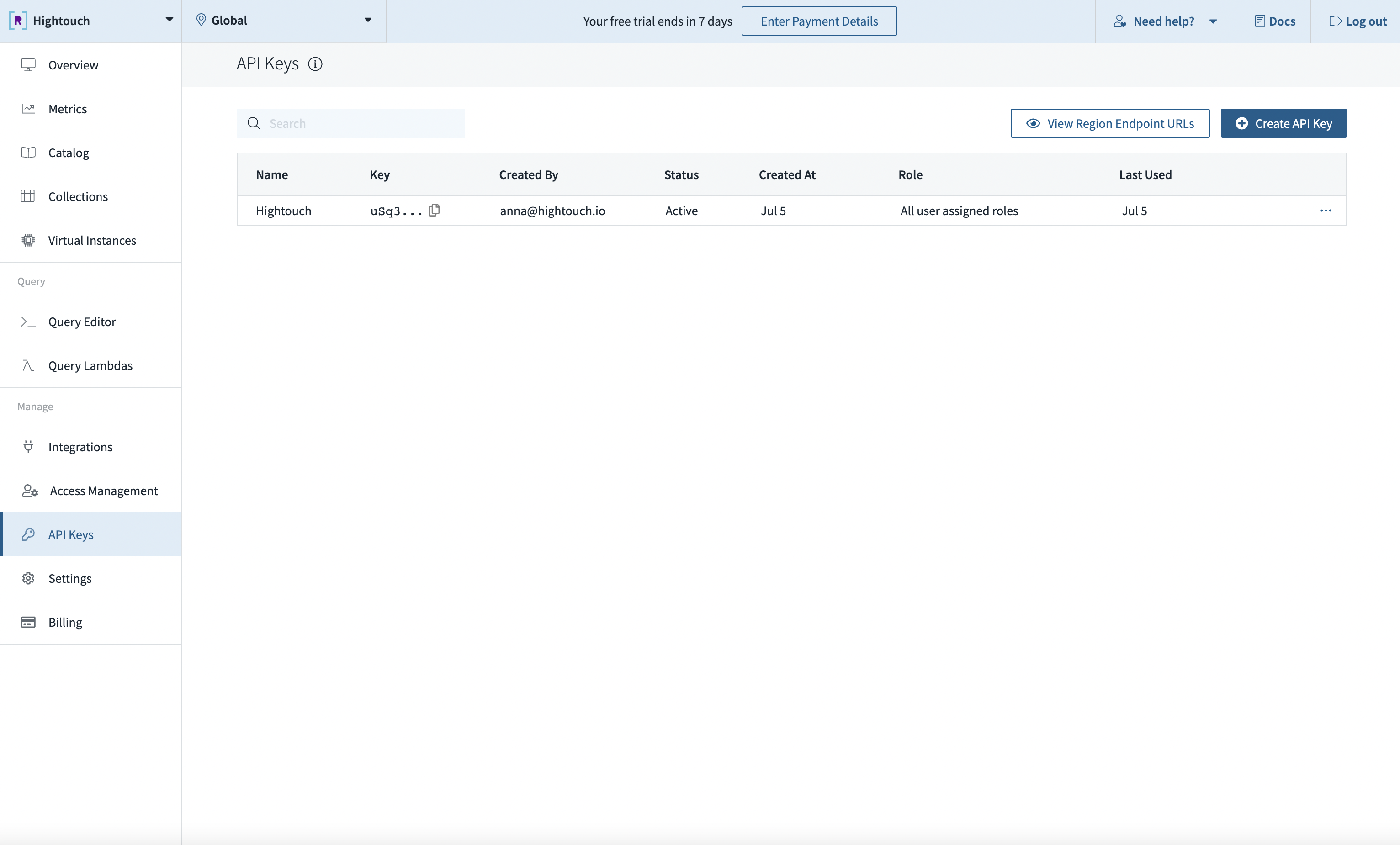
You will need to provide the API Key.
Once logged into your Rockset account, click the API Keys option under the Manage section in the sidebar.
You can either copy an existing key, or click the Create API Key button to generate one.
Syncing
Sync modes
Hightouch let's you select the workspace and collection to sync to.
This integration supports the Insert, Update and Upsert sync mode.
In the Insert mode, new rows will be inserted into Rockset.
In the Update mode, rows will be kept up-to-date within Rockset.
During the Upsert mode, new rows will be inserted into Rockset and existing rows will be kept up-to-date within Rockset.
Columns to sync
For Rockset, we give you the ability to send all columns as they are represented in your model.
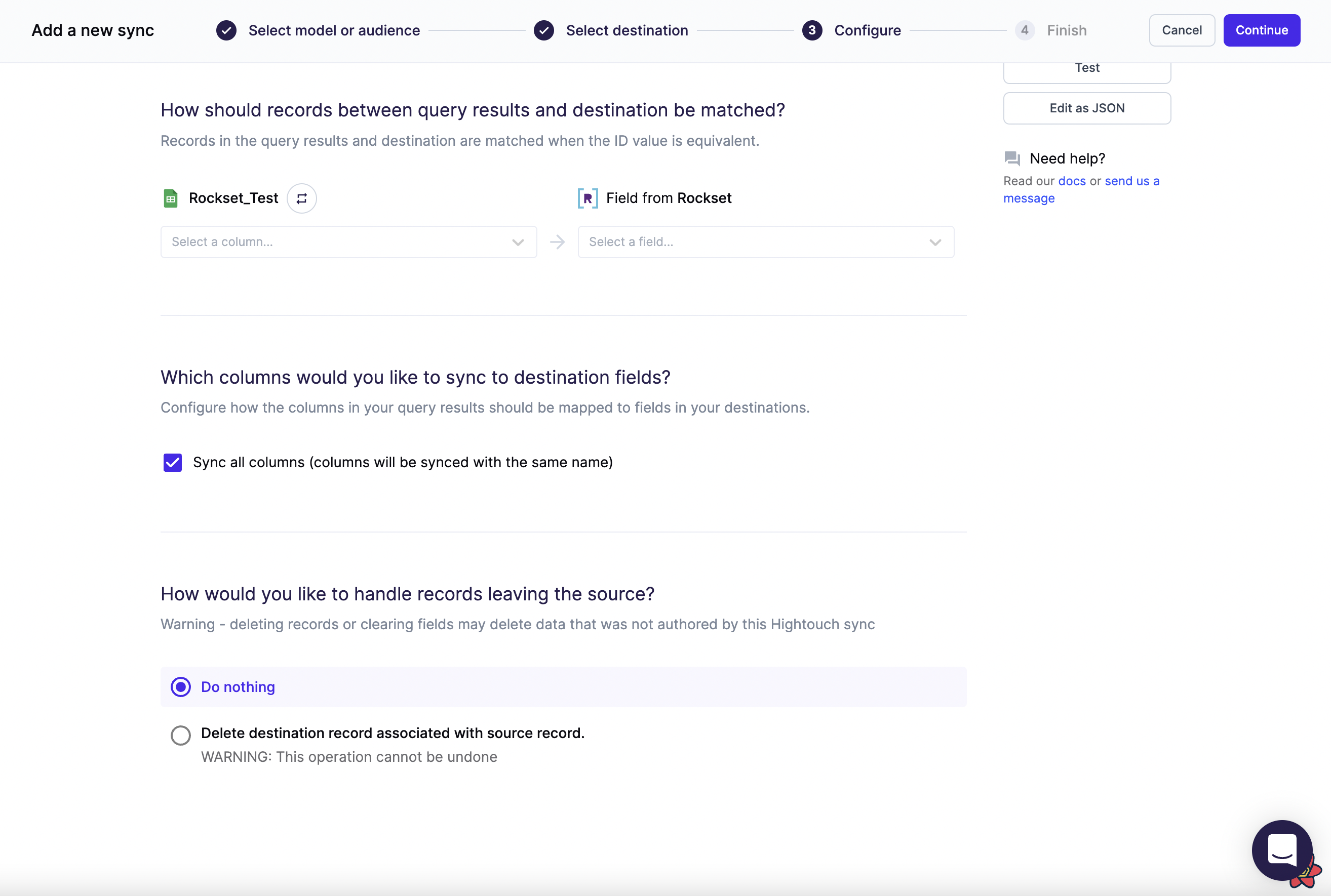
You can also choose to manually map fields. Only the fields that you map will be exported. All other columns from your results are ignored.
Delete mode
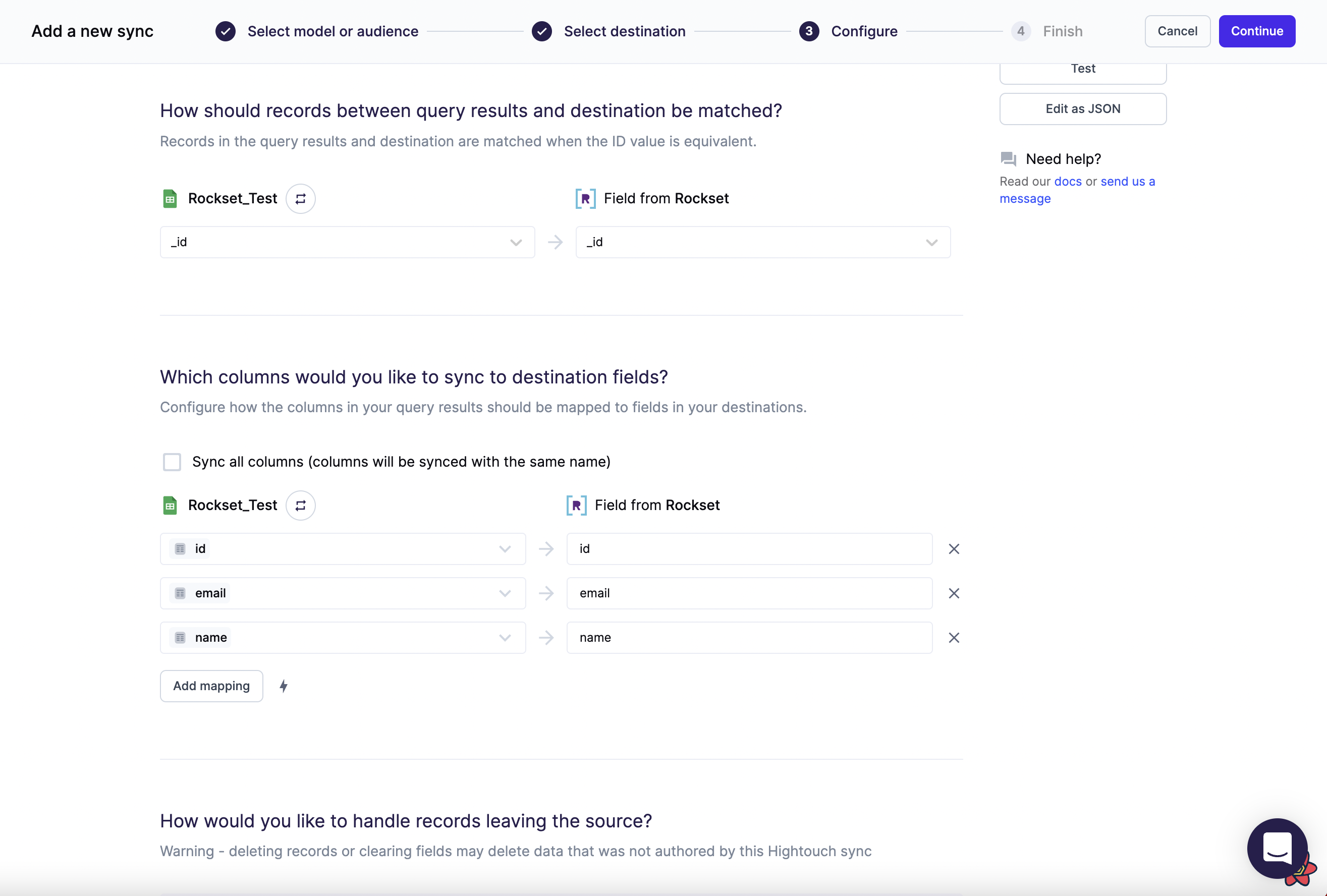
The default is to do nothing, but you can also set Hightouch to delete the record when it leaves the query result.
Tips and troubleshooting
Common errors
To date, our customers haven't experienced any errors while using this destination. If you run into any issues, please don't hesitate to . We're here to help.
Live debugger
Hightouch provides complete visibility into the API calls made during each of your sync runs. We recommend reading our article on debugging tips and tricks to learn more.
Sync alerts
Hightouch can alert you of sync issues via Slack, PagerDuty, SMS, or email. For details, please visit our article on alerting.