
Enrich your customer success platform with rich customer data from your warehouse to improve product adoption and reduce churn
Setup
To configure your Totango destination you will need to provide the following information: Service ID and API Key.
Service ID
To find your Service ID, you'll need to go to the upper right hand corner of the Totango dashboard, which is your profile picture. It will be listed at the bottom of the small context window that pops up.
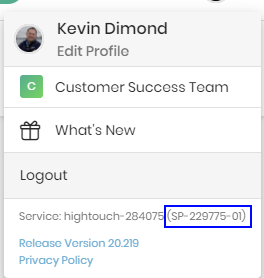
Your service ID is listed as a string which we only need one part. In the screenshot above, the full service ID is 'SP-229775-0'. We will only need the middle part of the ID to authenticate with Totango. Using the example provided, you would only need to use '229775' when filling out the destination details on the Hightouch destination setup page.
API key
To find your API Key, you'll need to go back to your profile picture.
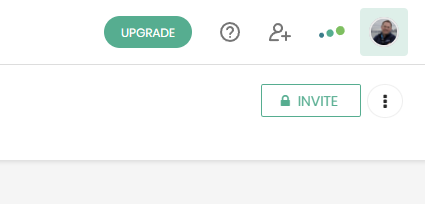
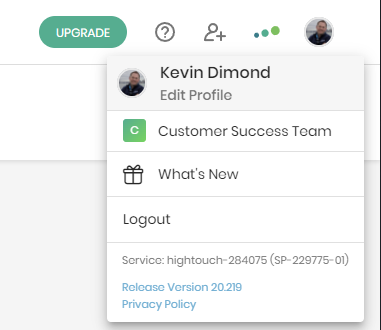
When you click it, you will want to go to 'Edit profile'.
Once in your profile you'll want to go to the 'Integrations' page.
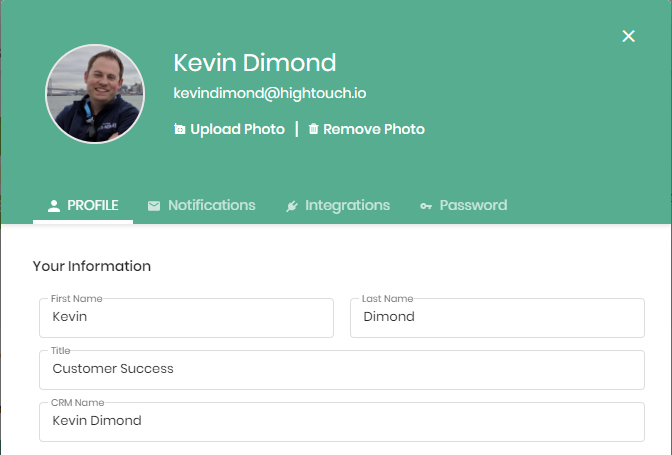
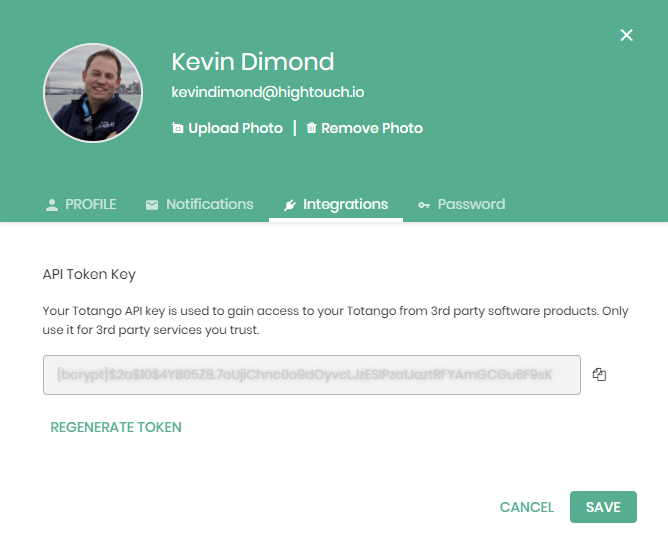
On the Integrations you will find your API Token Key. You will use this key when filling out the destination details on the Hightouch destination setup page.
Supported modes
The Totango destination supports the upsert mode:
- Upsert: Upsert mode pushes new accounts or account users to Totango and updates fields that change in your warehouse.
Tips and troubleshooting
Common errors
To date, our customers haven't experienced any errors while using this destination. If you run into any issues, please don't hesitate to . We're here to help.
Live debugger
Hightouch provides complete visibility into the API calls made during each of your sync runs. We recommend reading our article on debugging tips and tricks to learn more.
Sync alerts
Hightouch can alert you of sync issues via Slack, PagerDuty, SMS, or email. For details, please visit our article on alerting.