| Field | Content |
|---|---|
| Audience | Organization admins |
| Prerequisites | Organization admin permissions, or membership in a group with access to Organization settings. |
Overview
Hightouch uses role-based access control (RBAC) to define what actions users can take across workspaces and resources. The access model works like this:
- Users are people in your organization.
- Groups are the unit of access control — you manage permissions at the group level, not per user.
- A group gets access to a workspace by being assigned a role for that workspace.
- That role is either pre-built (a standard access level) or custom (fine-grained grants you configure).
New groups start with no workspace access. A user who isn't in any group — or whose group has no role assigned — can log in but can't see or do anything in a workspace.
This version of role management was introduced with Permissions V2. For older implementations, see the Access control (legacy) documentation.
How roles work
Hightouch's permissions system is built around data flow — who can see data and where it can be sent — rather than micromanaging every model or sync.
Access is based on sources and destinations
Every sync involves multiple resources. For example, syncing BigQuery → Salesforce includes:
- The source (BigQuery)
- The model built from BigQuery
- The destination (Salesforce)
- The sync that connects them
Rather than managing permissions for each model or sync, Hightouch groups access by source (where data comes from) and destination (where it goes). Models and syncs inherit permissions from these top-level resources.
To create or run a sync, users need permission for both the source and the destination. Having access to one side alone isn't enough.
Pre-built vs. custom roles
Every group needs a role before it can access a workspace. Hightouch offers two kinds:
- Pre-built roles — Four standard access levels (Admin, Editor, Draft Editor, Viewer) that apply broadly across all resources in a workspace.
- Custom roles — Fine-grained roles where you toggle individual grants per source, destination, product, or resource.
Start with pre-built roles. They cover the most common access patterns and make onboarding fast. Only switch to custom roles when a group needs exceptions — like access to specific sources but not others, or Customer Studio permissions without source-level access.
| Use pre-built when... | Use custom when... |
|---|---|
| A group should have one standard access level across a workspace | Different teams sharing a workspace need distinct permissions |
| You're onboarding and want to move fast | You need to restrict access to specific sources or destinations |
| Everyone in the group does roughly the same type of work | You use subsets, approval flows, or destination rules and need roles aligned to those controls |
| The group maps cleanly to Admin, Editor, Draft Editor, or Viewer | Marketers need Customer Studio access without source-level permissions |
A good rule of thumb: pre-built = "this whole group should have one standard level of access." Custom = "this group needs exceptions, scoped resources, or product-specific permissions."
Pre-built roles
Pre-built roles are ready-made access levels. They apply to all sources, destinations, Customer Studio parent models, Agents, and Events resources in a workspace.
There are four pre-built roles:
- Workspace admin – Full access to all resources and settings. Can manage credentials, approve changes, and configure everything. Organization admins automatically inherit this role.
- Workspace editor – Can create and edit most resources, create new sources and destinations, and trigger syncs. Cannot manage credentials or configure schema.
- Workspace draft editor – Can create and edit drafts (where supported) and view data, but cannot trigger syncs, approve changes, or create new sources or destinations.
- Workspace viewer – Read-only access. Cannot see row-level data or make changes.
Pre-built role permissions
The tables below show the default grants for each pre-built role. Viewer has no grants and is not shown.
General
| Permission | Admin | Editor | Draft editor |
|---|---|---|---|
| Create new sources | ✅ | ✅ | ❌ |
| Create new destinations | ✅ | ✅ | ❌ |
Source
| Permission | Admin | Editor | Draft editor |
|---|---|---|---|
| View row-level data | ✅ | ✅ | ✅ |
| Draft syncs & models | ✅ | ✅ | ✅ |
| Approve syncs & models | ✅ | ✅ | ❌ |
| Configure schema | ✅ | ❌ | ❌ |
| Manage source | ✅ | ❌ | ❌ |
Destination
| Permission | Admin | Editor | Draft editor |
|---|---|---|---|
| Trigger syncs | ✅ | ✅ | ❌ |
| Draft syncs & models | ✅ | ✅ | ✅ |
| Approve syncs & models | ✅ | ✅ | ❌ |
| Manage destination | ✅ | ❌ | ❌ |
Customer Studio
| Permission | Admin | Editor | Draft editor |
|---|---|---|---|
| View parent model data | ✅ | ✅ | ✅ |
| Create and edit audiences | ✅ | ✅ | ✅ |
| Trigger audience syncs | ✅ | ✅ | ❌ |
| Approve audience syncs | ✅ | ❌ | ❌ |
Agents
| Permission | Admin | Editor | Draft editor |
|---|---|---|---|
| Access Agents | ✅ | ✅ | ❌ |
| Configure Agents | ✅ | ❌ | ❌ |
Events
| Permission | Admin | Editor | Draft editor |
|---|---|---|---|
| Create new event sources | ✅ | ✅ | ❌ |
| Create new event warehouse destinations | ✅ | ✅ | ❌ |
| Create new event streaming destinations | ✅ | ✅ | ❌ |
| Create new event contracts | ✅ | ✅ | ❌ |
| Create new event functions | ✅ | ✅ | ❌ |
Assign a pre-built role
Roles are assigned to user groups, not individual users.
- Go to Settings, then Organization, then Groups.
- Select or create a group.
- In the Workspaces tab, use the Role dropdown to assign a pre-built role.
- Save changes.
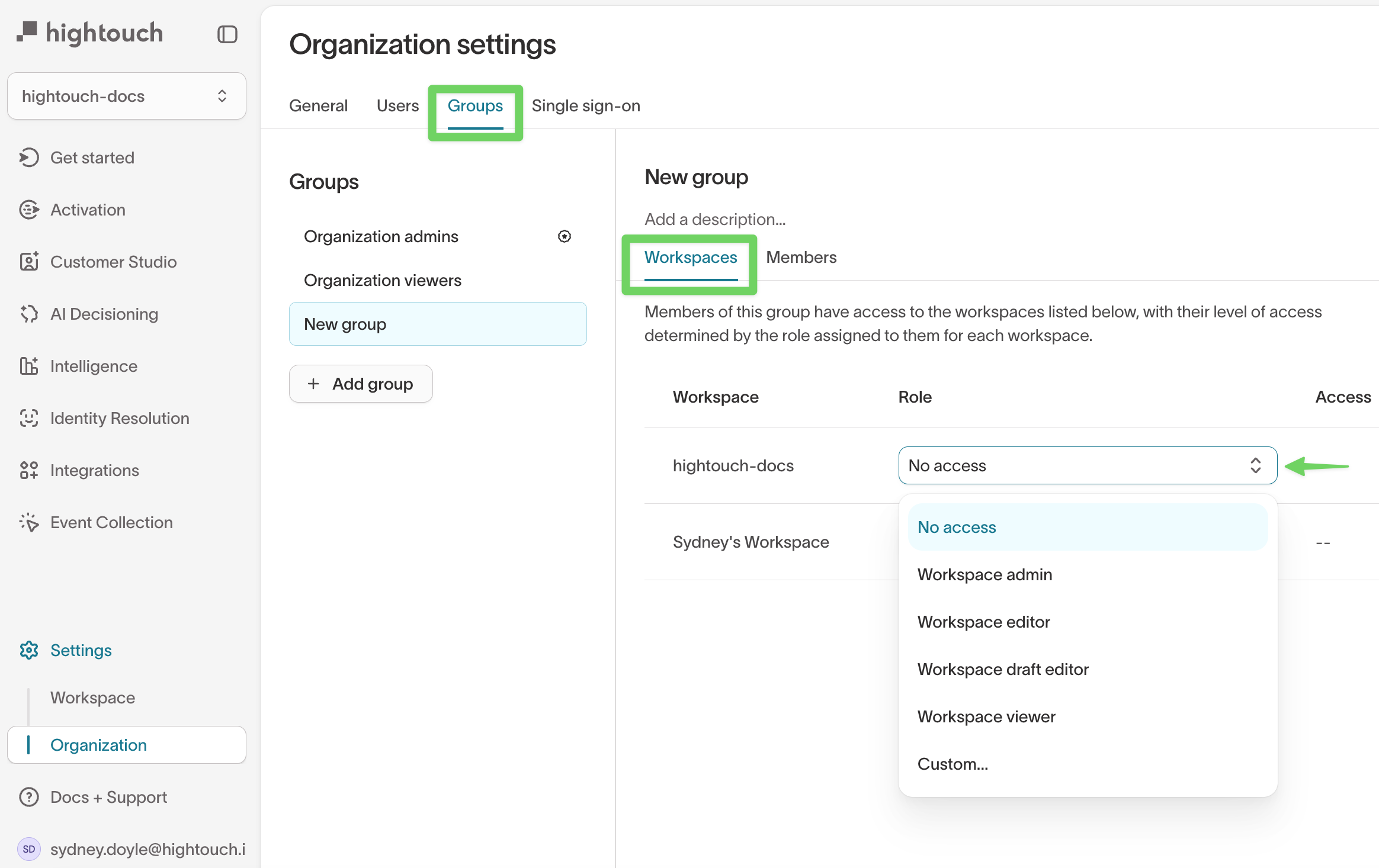
The Access column shows a summary of the group's permissions for each workspace. It gives a helpful overview but doesn't display every grant or cover all resource types.
When to switch to custom roles
Pre-built roles work well for onboarding and teams with uniform access needs. Consider switching to a custom role when:
- A team needs access to some sources or destinations but not others
- Marketers should work only in Customer Studio without source-level permissions
- You need to align roles with subsets, approval flows, or destination rules
- You want to give an Events team access to event resources without full editor permissions
Custom roles
Custom roles let you define precise permissions for each team, workspace, or use case. Instead of applying a standard access level, you toggle individual grants across six tabs that mirror the custom role builder in the UI:
| Tab | What it controls |
|---|---|
| General | Whether users can create new sources or destinations in the workspace. |
| Sources | How users interact with connected data sources — view row-level data, manage credentials, create models. |
| Destinations | What users can do with destinations — create syncs, trigger sync runs, manage credentials. |
| Customer Studio | Access to parent models, audience creation, journey configuration, and journey publishing. Functions like source-level grants scoped to parent models. |
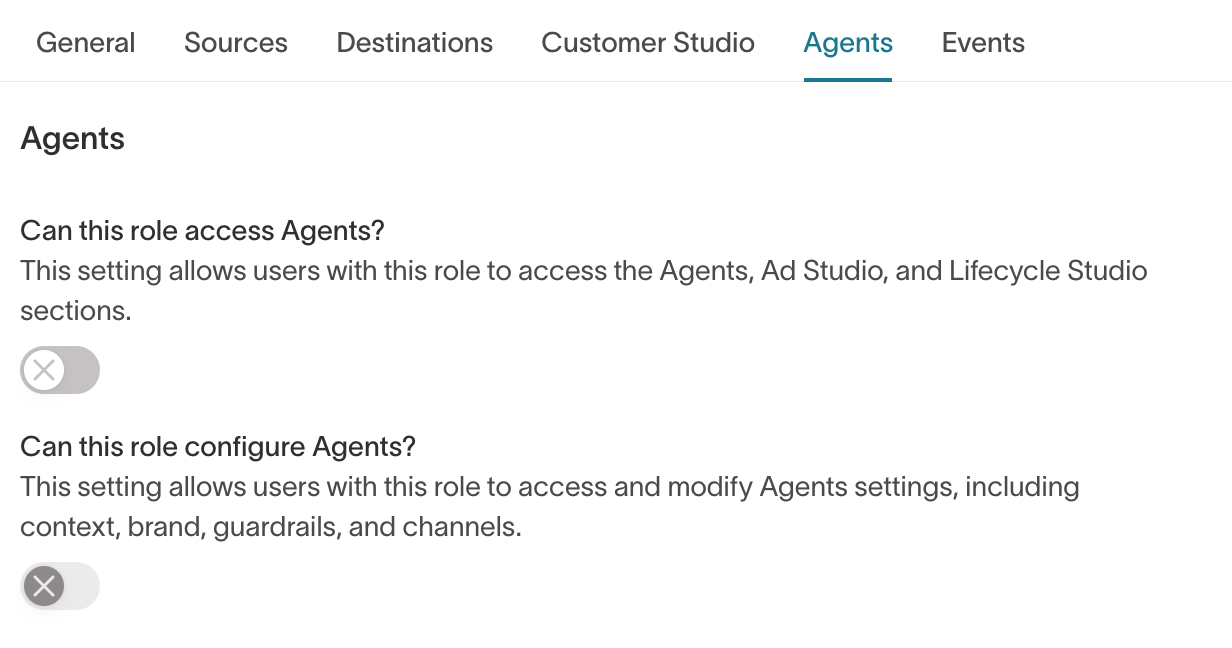
| Agents | Access to the Agents, Ad Studio, and Lifecycle Studio sections, and whether users can modify Agents settings. |
| Events | Who can create and manage Event resources: sources, streaming destinations, warehouse destinations, contracts, and functions. |
How to create or edit a custom role
- Go to Settings, then Organization, then Groups.
- Select or create a group.
- In the Workspaces tab, select
Custom...from the Role dropdown. - Save changes.
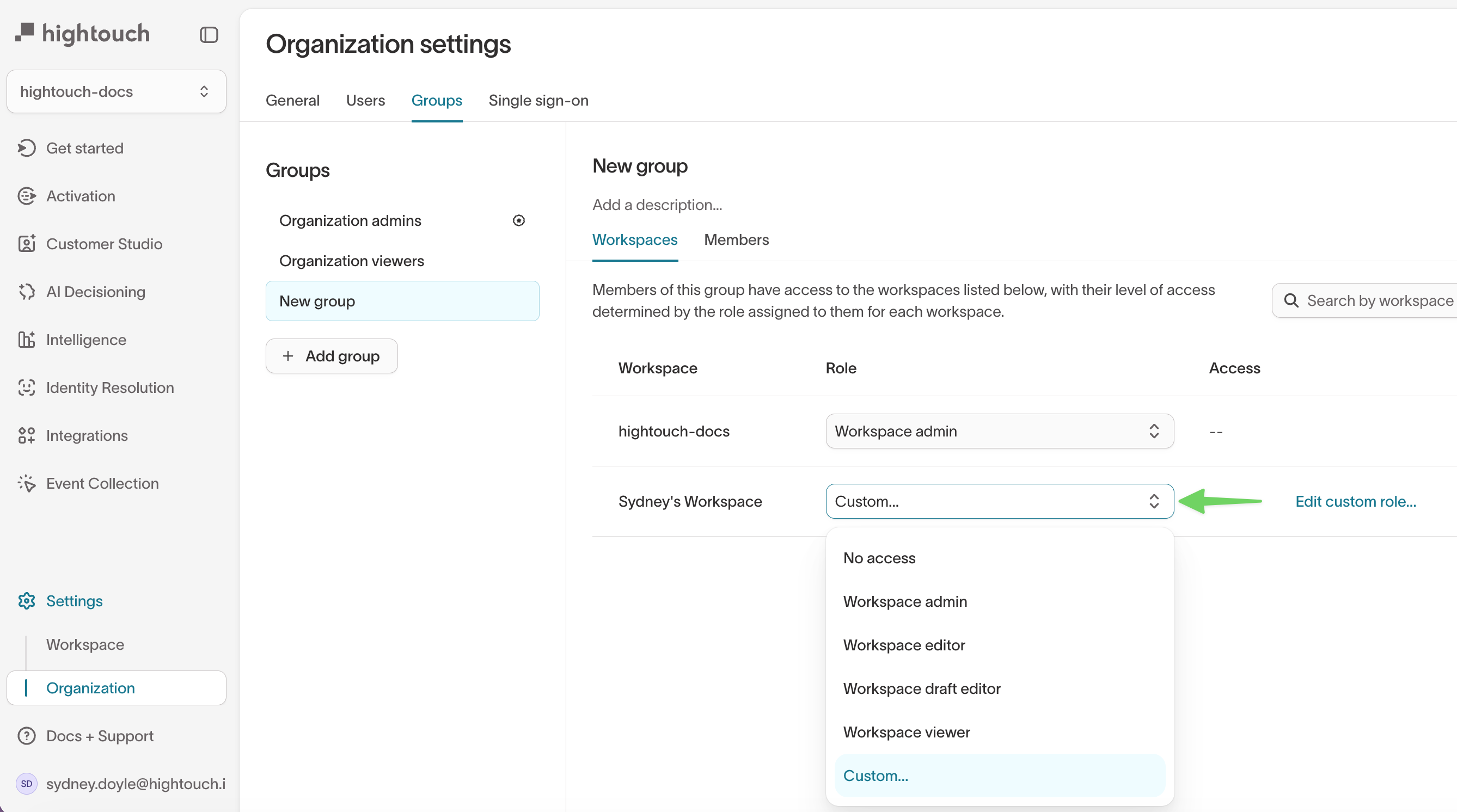
- Click Edit custom role to open the configuration panel. You'll see the six tabs listed above.
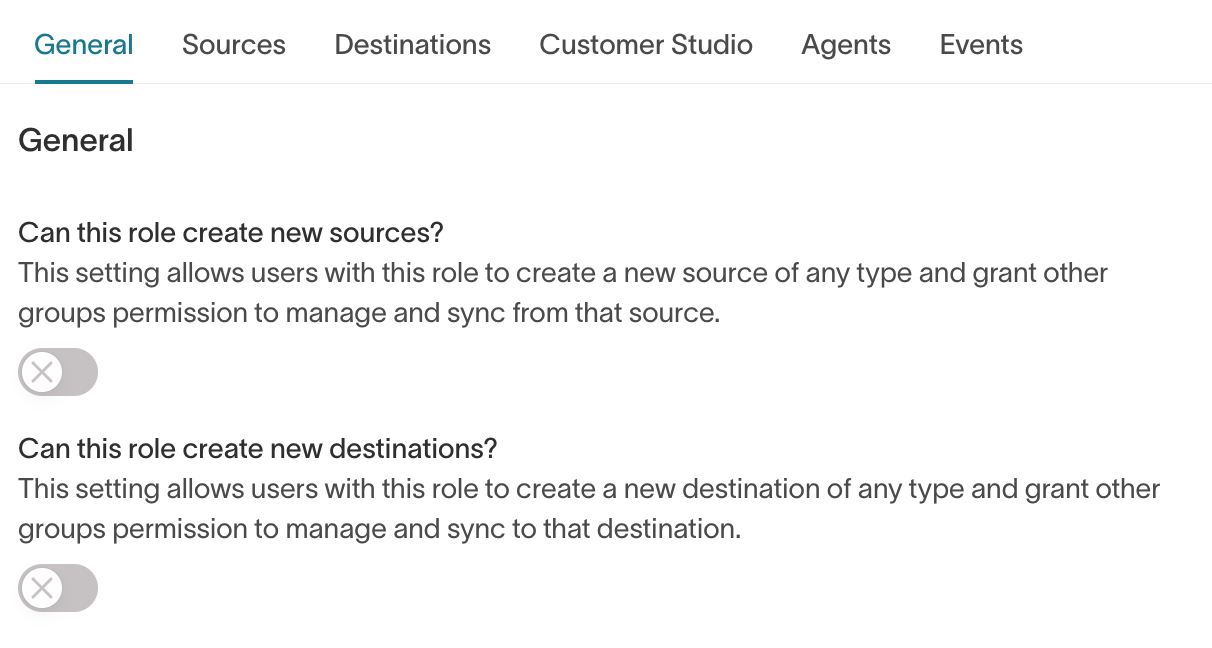
Changes save automatically when you click Save changes in the bottom-right corner.
Custom role grant reference
This section documents every individual grant you can configure when building a custom role. Each subsection corresponds to a tab in the custom role builder.
Jump to: General · Sources · Destinations · Customer Studio · Agents · Events · Subsets · Approval flows
General
| Grant | What it allows |
|---|---|
| Create new sources | Create data sources in the workspace and assign access permissions for other groups. |
| Create new destinations | Create destinations in the workspace and assign access permissions for other groups. |
Workspace-level resources — such as folders, extensions, custom storage, and API keys — can only be configured by workspace admins.
Source
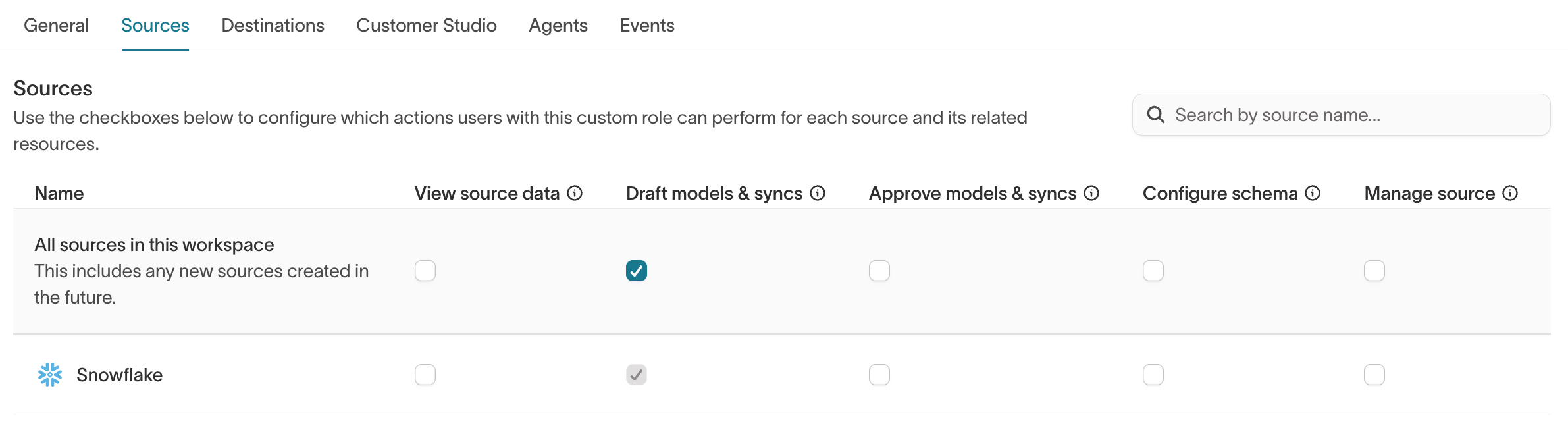
Source-level permissions are designed primarily for Reverse ETL use cases, where users need the flexibility to run custom SQL when pulling data from the source. If you're creating a role for marketers in Customer Studio, it's best to avoid enabling any source grants. Instead, use Customer Studio grants, which limit access to specific parent models and subsets, ensuring that marketers work within your pre-approved Customer Studio schema.
View source data
With this grant enabled, users can view row-level data from this source across the Hightouch app. This includes:
- Previewing models
- Viewing row-level data when testing rows during sync creation
- Accessing row-level data in the debugger for historical sync runs
Primary keys and error messages are not classified as row-level data to preserve basic sync observability. If you choose not to assign this grant, avoid using columns with PII (like email or phone number) as primary keys, as these fields will be visible to all users across the app.
Configure models & syncs
When enabled, this grant allows users to:
- Create, edit, or delete models that pull data from the source
- Use these models for syncing (provided the user has permissions to sync data to destinations)
Users can only edit existing models if they can also edit all of the syncs that rely on that model.
Configure schema
Applicable only to workspaces with Customer Studio, this grant allows users to configure the schema layer for Customer Studio, including traits, destination rules, and subsets.
Manage source
With this grant enabled, users can edit the source configuration, which includes:
- Updating connection details and credentials
- Adjusting the sync engine choice
- Setting source-level defaults for Warehouse Sync Logs
Destination
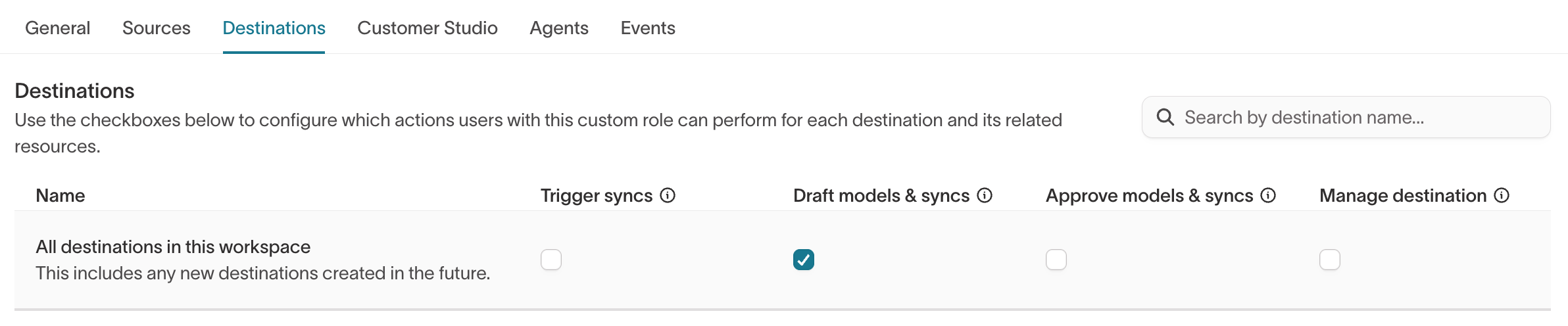
| Grant | What it allows |
|---|---|
| Trigger syncs | Manually trigger sync runs. Does not allow editing schedules. |
| Configure syncs | Create, edit, or delete syncs to the destination and set their schedules. Does not allow manual triggering. |
| Manage destination | Modify the destination's configuration, including connection details, credentials, and alert defaults. |
Customer Studio
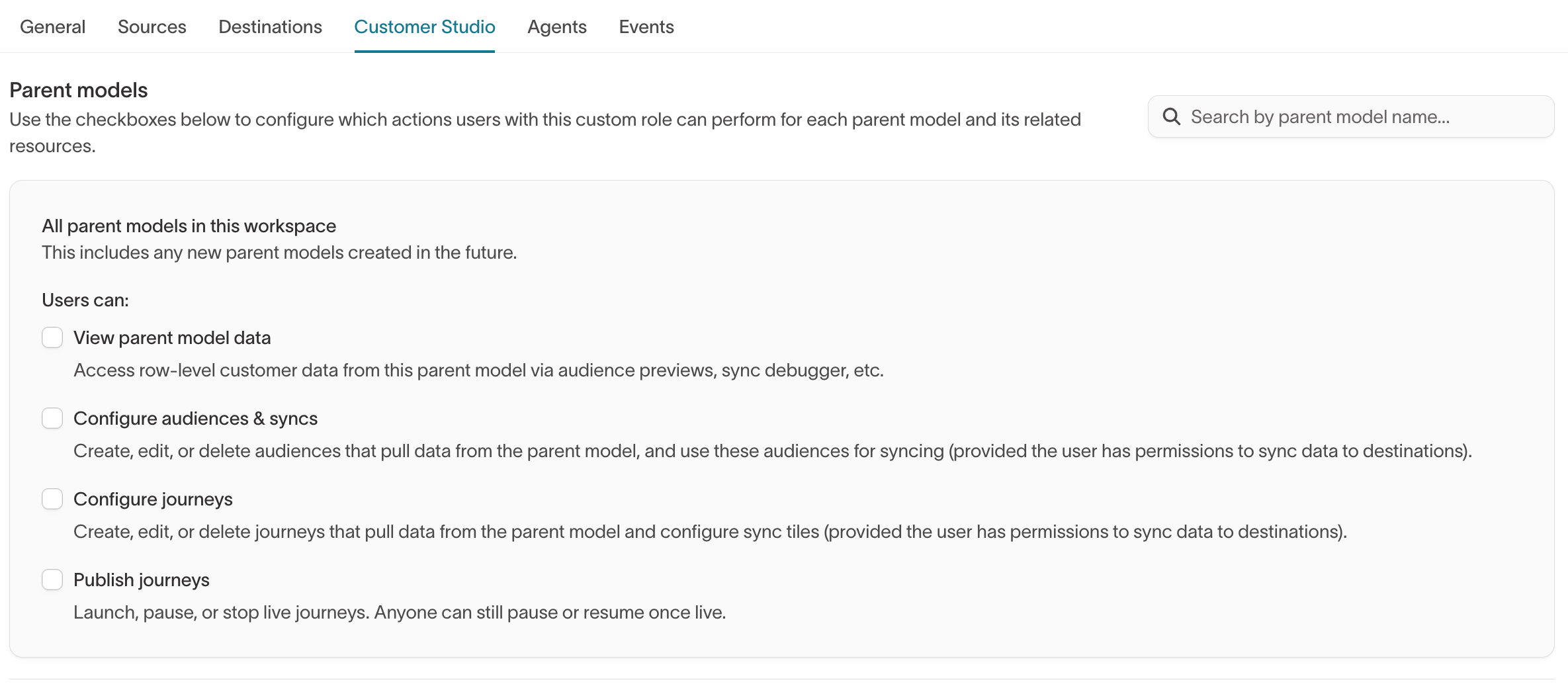
These grants function similarly to source-level grants but are scoped to specific parent models within the Customer Studio schema.
View parent model data
Enabling this grant allows users to view row-level data from the parent model throughout the Hightouch app. This includes:
- Previewing audiences to see row-level data for individual members
- Viewing row-level data when testing rows during sync creation
- Accessing row-level data in the debugger for historical sync runs
If a user has the Configure audiences & syncs grant but lacks the View parent model data grant, they can still preview audiences, but they'll be limited to aggregate counts and insights, without row-level data for each audience member.
Configure audiences & syncs
When enabled, this grant allows users to:
- Create, edit, or delete audiences that pull data from the parent model
- Use these audiences for syncing (provided the user has permissions to sync data to destinations)
Users can only edit existing audiences if they can also edit all of the syncs that rely on that audience.
Configure journeys
When enabled, this grant allows users to:
- Create, edit, or delete journeys and journey templates.
Publish journeys
When enabled, this grant allows users to:
- Launch, pause, or stop live journeys
Agents
| Grant | What it allows |
|---|---|
| Access Agents | Access the Agents, Ad Studio, and Lifecycle Studio sections. Without this grant, these sections are hidden. |
| Configure Agents | Modify Agents settings, including context, brand, guardrails, and channels. |
Events
Events permissions are organized into two layers: workspace-level creation grants that control who can create new Event resources, and per-resource grants that control what users can do with specific resources.
Events permissions require Permissions V2. If your workspace is still on the legacy RBAC system, Events resources are restricted to workspace admins only.
Creation grants
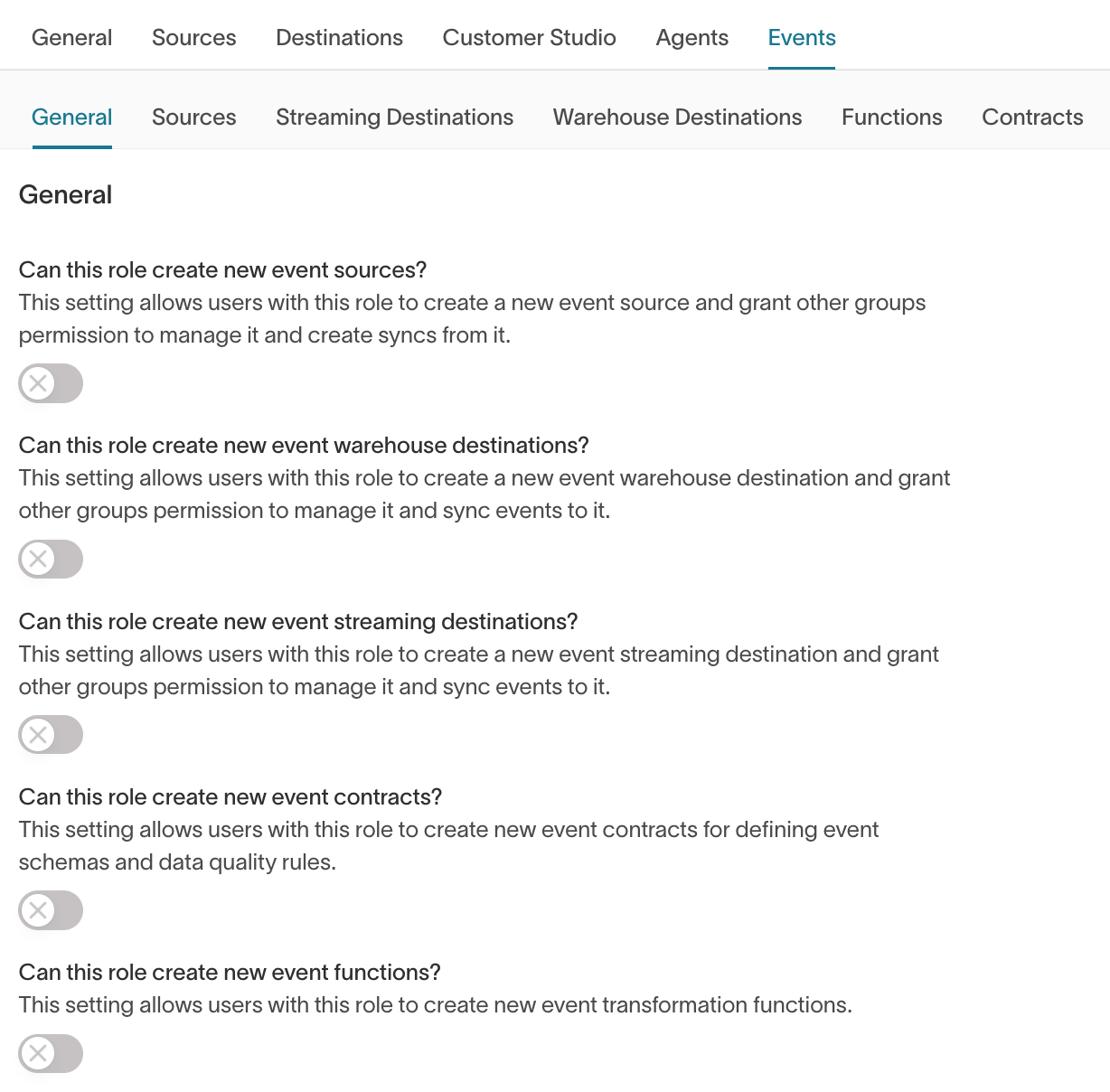
The General sub-tab within Events controls which types of Event resources users can create. Each grant also allows the creator to assign access permissions to other groups.
| Grant | What it allows |
|---|---|
| Create new event sources | Create event sources and grant other groups permission to manage them. |
| Create new event warehouse destinations | Create event warehouse destinations and grant other groups permission to manage them. |
| Create new event streaming destinations | Create event streaming destinations and grant other groups permission to manage them. |
| Create new event contracts | Create event contracts for defining event schemas and data quality rules. |
| Create new event functions | Create event transformation functions. |
Per-resource grants
The remaining Events sub-tabs control what users can do with individual event resources. Available grants vary by resource type:
| Resource type | Can edit | Can sync | Can access data | Can run |
|---|---|---|---|---|
| Event sources | ✅ | ✅ | ✅ | — |
| Streaming destinations | ✅ | ✅ | — | — |
| Warehouse destinations | ✅ | ✅ | — | ✅ |
| Functions | ✅ | — | — | — |
| Contracts | ✅ | — | — | — |
- Can edit — Modify the resource's configuration.
- Can sync — Create and manage syncs involving the resource.
- Can access data — View live event data in the source debugger. Only available for event sources.
- Can run — Trigger runs. Only available for warehouse destinations.
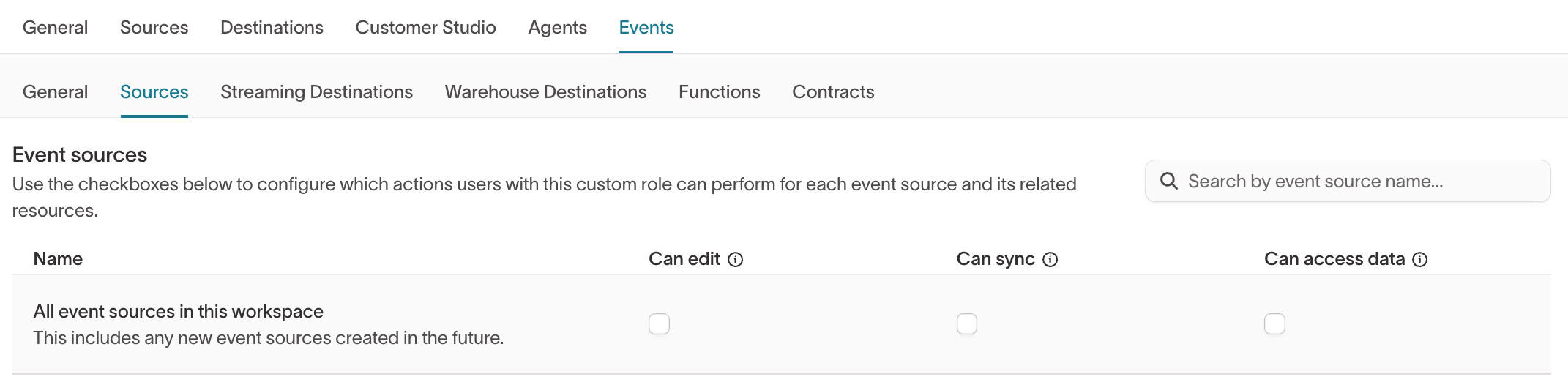
To create or manage an event sync, a user needs the relevant permissions on both the event source and the event destination. Having access to only one side is not sufficient.
Workspace admins and built-in workspace editors are automatically granted all Events creation permissions. Non-admin, non-editor groups default to no Events access until grants are explicitly configured.
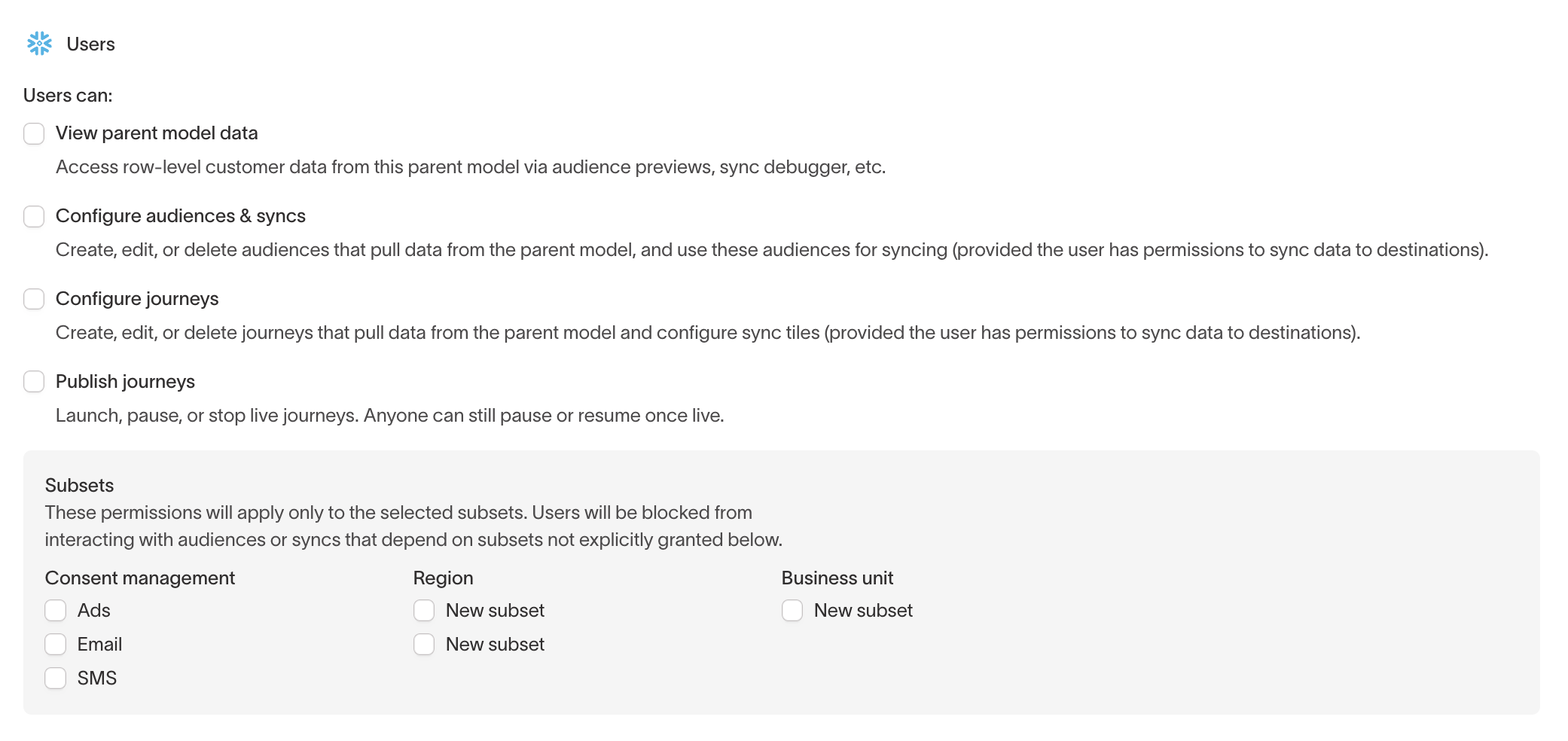
Differences when subsets are enabled
Subsets let you divide a parent model into smaller, permissioned segments (e.g., by brand, region, or consent type).
They're configured in Customer Studio, then Governance, then Subset categories.
For example:
- Your EU marketing team can only build audiences using EU data.
- Your email marketing team can only use consented audiences.
When subsets are active, you'll see a separate set of checkboxes that let you apply earlier grants (like View parent model data and Configure audiences & syncs) to specific subsets. The behavior of these checkboxes varies based on whether the subset category is marked as "required."
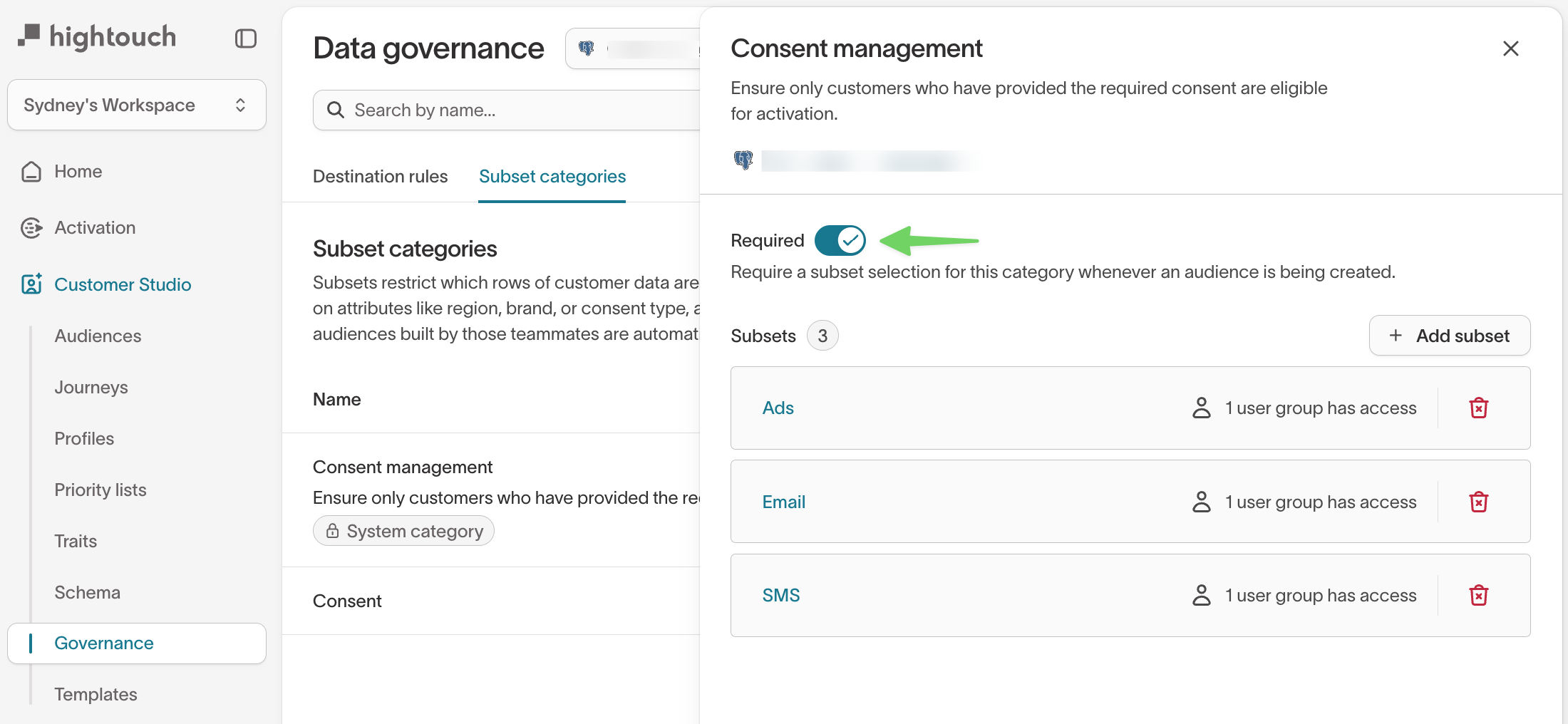
- If the subset category is required, the user will only be able to configure and use audiences within the selected subset values. (If no values are checked, the user will not be able to configure or use any audiences at all.)
- If the subset category is not required, the user can configure and use audiences with the selected subset categories, or without subsets altogether.
Differences when approval flows are enabled
Approval flows add review steps before publishing model or sync changes.
They're enabled in Settings, then Workspace, then Configuration, then Require approvals.
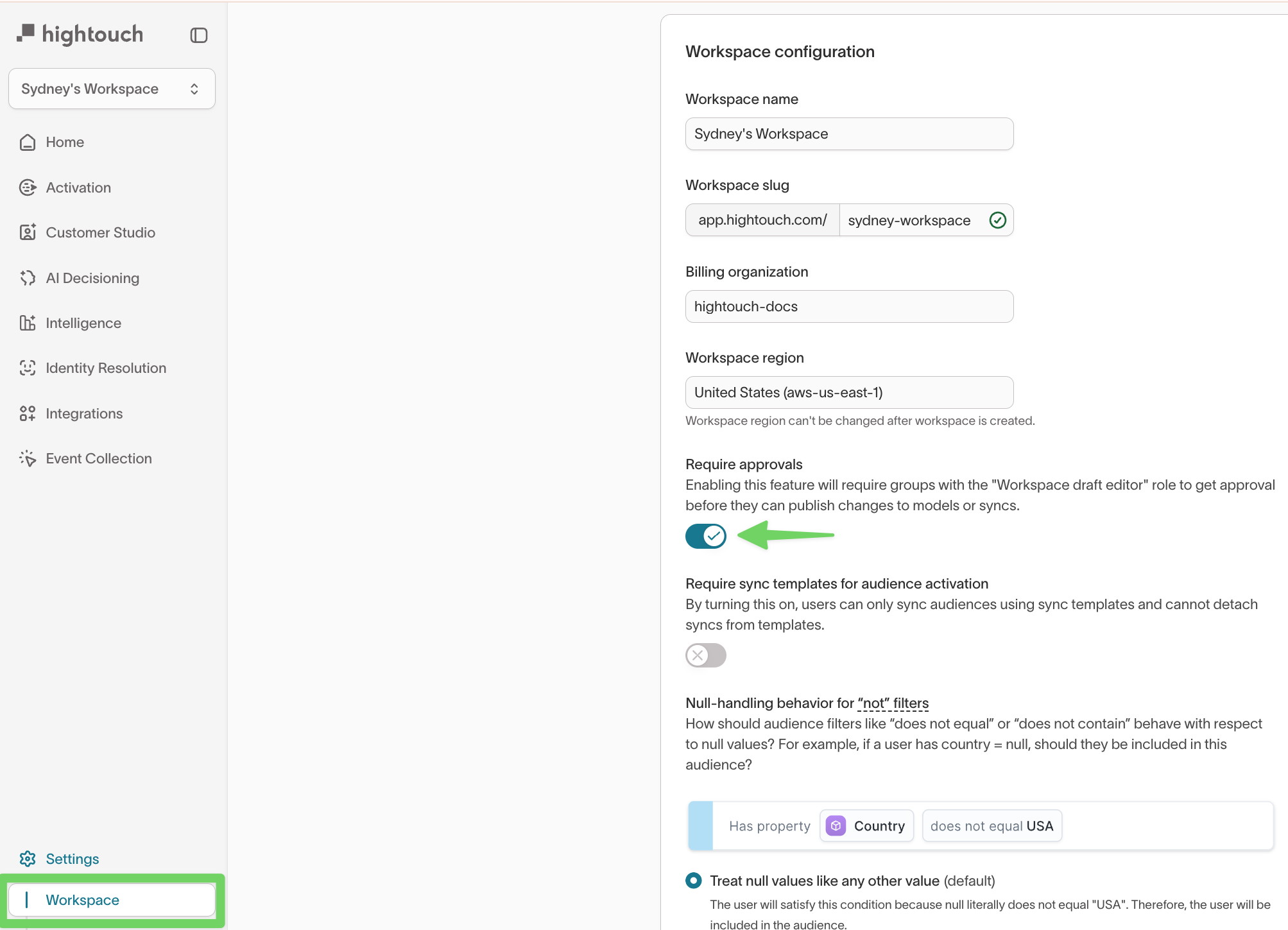
When enabled, the Configure models & syncs grant splits into:
- Draft models & syncs – Create or edit drafts (cannot delete published resources).
- Approve models & syncs – Review and approve or deny drafts.
Together, these two grants provide the same functionality as the original Configure models & syncs grant.
Approval flows do not apply to audience creation in Customer Studio, as there is no concept of a draft audience. However, approval may be required to sync an audience to a destination.
The Draft and Approve grants are separate and do not overlap. To allow a user to publish changes without requiring approval, you need to assign both the Draft and Approve grants. (Under the hood, the user creates a draft and then immediately self-approves it.)
To approve a sync, a user needs the Approve grant for both the source and the destination.
Governance in context
RBAC defines who can act in a workspace, but it's only one part of Hightouch's governance framework. Roles control user access, but they don't enforce organization-wide policies like redacting PII or honoring consent requirements.
Hightouch provides complementary governance features that work alongside roles:
- Destination rules – Control what types of data can be sent to specific destinations (for example, ensuring only consented users are synced to email marketing).
- Subsets – Divide your total addressable customer base into smaller segments, which is especially useful in workspaces that span multiple brands or regions.
- Approval flows – Add peer review for sync and model changes before publishing.
- Staging environments – Test and validate syncs in a dedicated space before going live to reduce the risk of errors in production.
You can use these features independently or in combination. You don't need to enable every governance feature — especially when you're just getting started. Many are built for large enterprises with complex brand or compliance needs.
If you'd like help designing the right setup, — we're here to help.
FAQ
How do I prevent a user from seeing a resource?
In Hightouch, all resources in a workspace are intentionally visible to all workspace members; configuration details are not hidden. Access control determines who can create or modify resources, but it cannot make resources invisible. If you need to restrict visibility of sensitive resources for certain users, consider placing these resources in a separate workspace.
What happens if a user belongs to more than one group?
Users can belong to multiple groups within the same workspace, allowing them to inherit permissions from more than one role at a time.
This setup is common. When a user is part of multiple groups, they receive the combined permissions of all their group memberships, meaning that they can perform all actions permitted to members of any of those groups.
However, this does not allow them to "mix and match" permissions across groups. In other words, if one group can sync from source A to destination B, and another group can sync from source C to destination D, a user who belongs to both groups can sync from A to B and C to D — but not from A to D or C to B.