| Audience | Marketers and analytics/data engineers |
| Prerequisites |
|
Overview
When defining audiences, you sometimes want to act on signals about what customers are likely to do next, not just what they have already done.
Predictive traits extend Customer Studio traits with AI-powered scores that estimate the likelihood of a user performing a future action.
For example:
- Purchase propensity: probability that a user will make a purchase within the next 7 days
- Cart completion propensity: probability that a user who started checkout will complete their purchase
- Churn prediction: probability that a user will not perform a key event (such as a purchase or login) within a given timeframe
Predictive traits are refreshed automatically on a schedule so your campaigns always use the latest predictions.
The predictive traits suite also includes catalog recommendations for personalized item-level recommendations and lookalike audiences for finding users similar to your best segments.
Predictive traits are built on the same machine learning models used in Hightouch AI Decisioning. They are automatically trained on your historical event data and do not require custom ML expertise.
Configure predictive inputs
Before you create a predictive trait, you must define predictive inputs in your schema. Predictive inputs are the user properties and event data that models use for training and scoring.
To configure predictive inputs:
- Go to Customer Studio → Schema.
- Select your parent model (for example,
Users). - Open the Predictive Inputs tab.
- Under User Properties, select the columns from this model that can help identify patterns — for example,
age,country,device,plan_tier. - Under Key Events, add the event models that are relevant to the prediction target. Events must have a primary key configured to be available for selection.
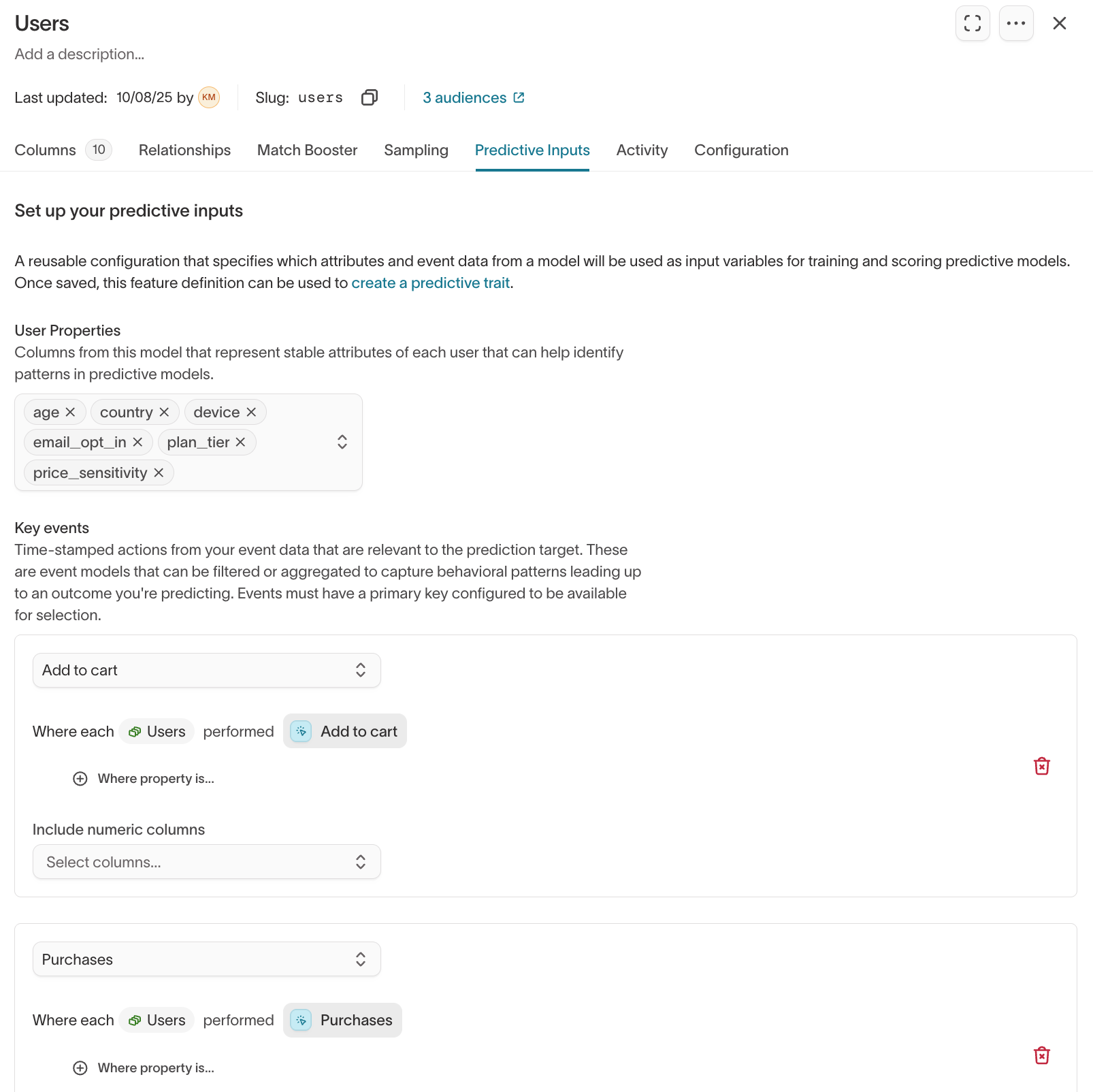
Once saved, these inputs are reusable across multiple predictive traits, catalog recommendations, and lookalike audiences.
Create a predictive trait
To create a predictive trait:
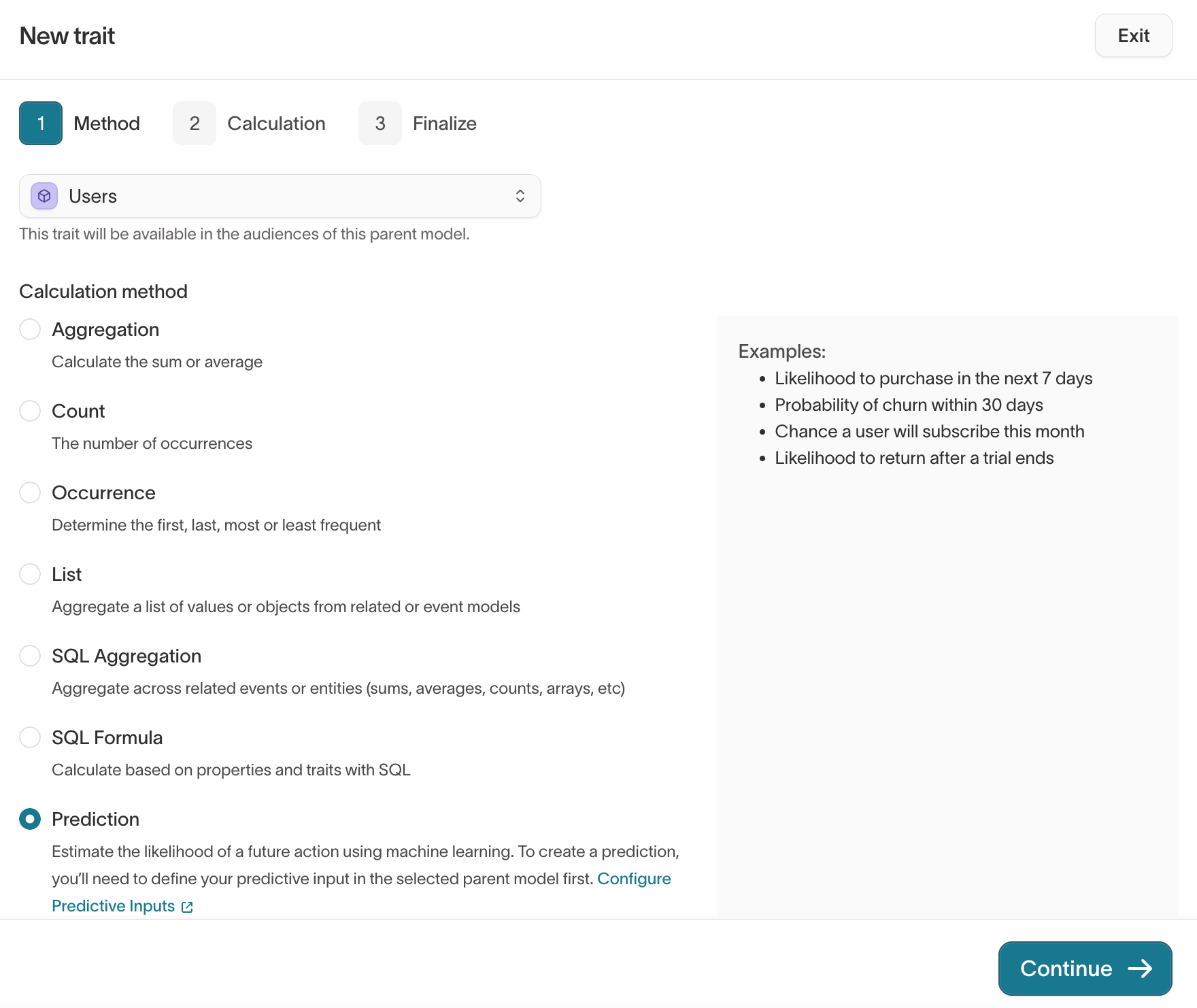
- Go to Customer Studio → Traits.
- Click Create → New trait.
- In the Method step, select a parent model (for example,
Users). - Under Calculation method, select Prediction.
- Click Continue.
- In the Calculation step, configure the prediction settings. The remaining settings on this page are optional.
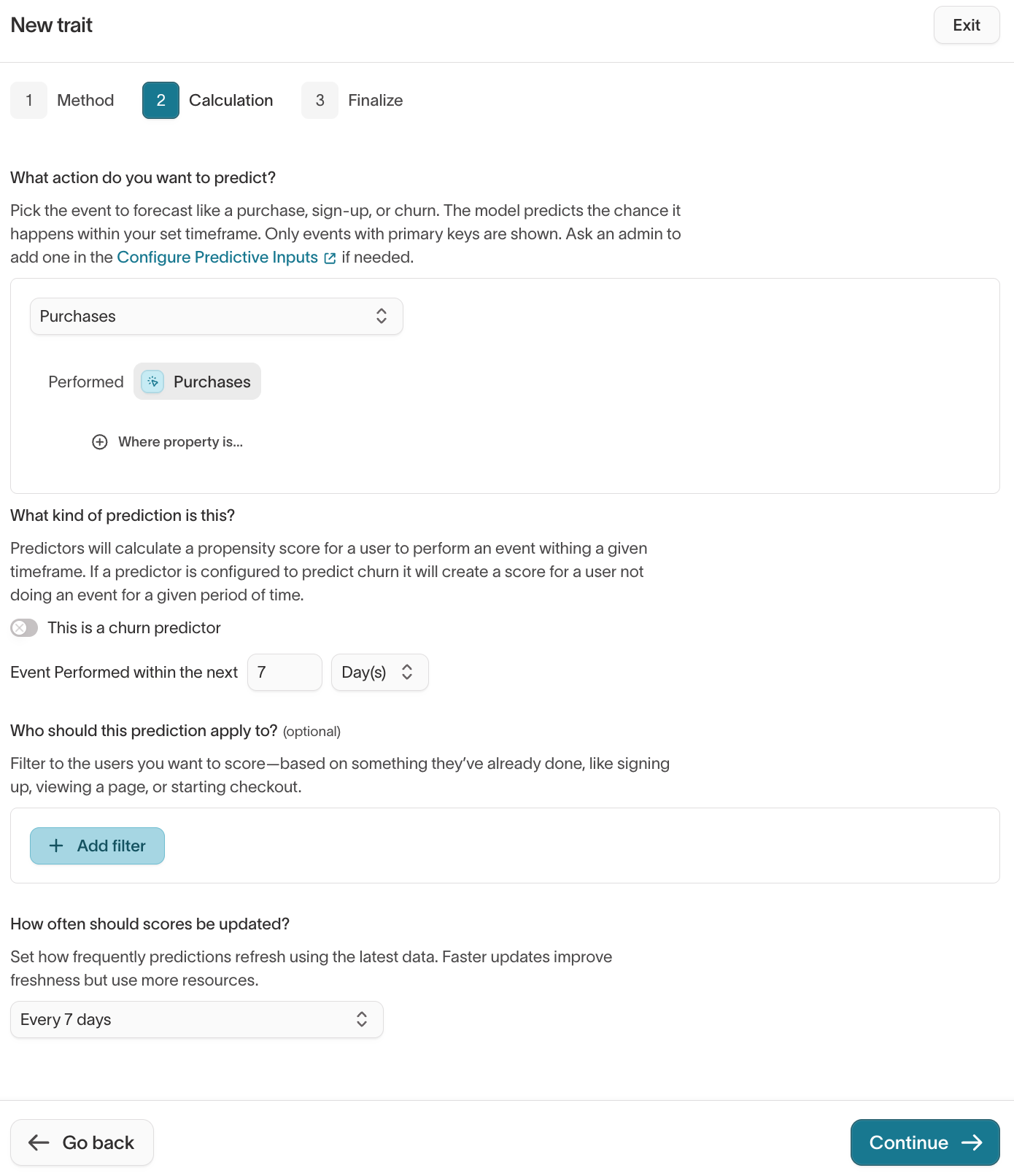
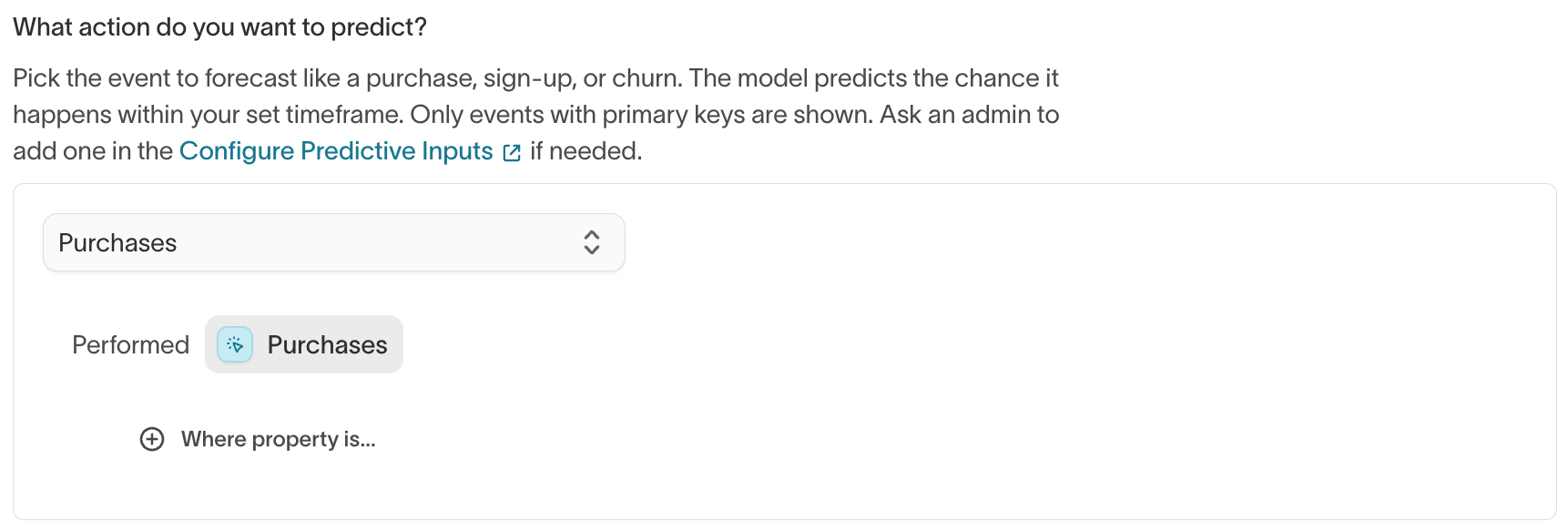
Under What action do you want to predict?, select the event to forecast (for example, Purchases). Only events with primary keys that are configured as predictive inputs are shown.
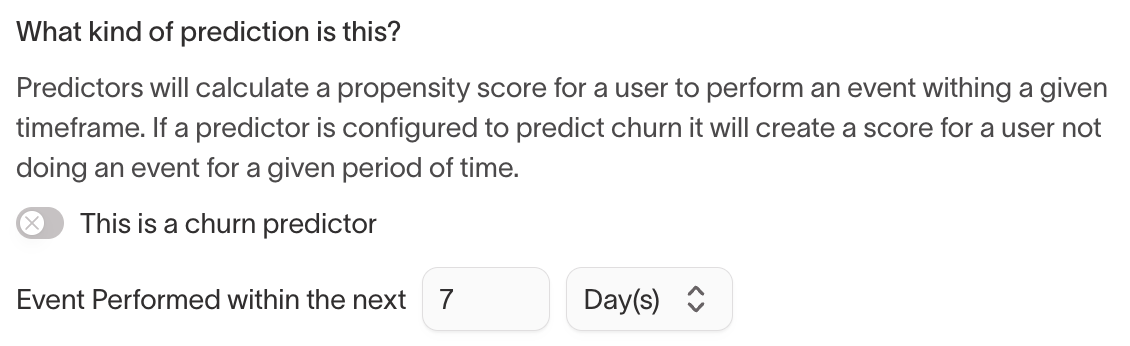
Under What kind of prediction is this?, set the prediction timeframe — for example, "Event Performed within the next 7 Day(s)." Optionally, enable This is a churn predictor to score users based on the likelihood of not performing the event within the timeframe.
(Optional) Under Who should this prediction apply to?, add filters to restrict which users are scored — for example, based on something they've already done, like signing up or viewing a page.
Under How often should scores be updated?, set the refresh cadence. More frequent updates keep scores fresh but use more warehouse resources.
Click Continue.
- In the Finalize step, name your trait, optionally add a description, review the calculation summary, and click Create trait.
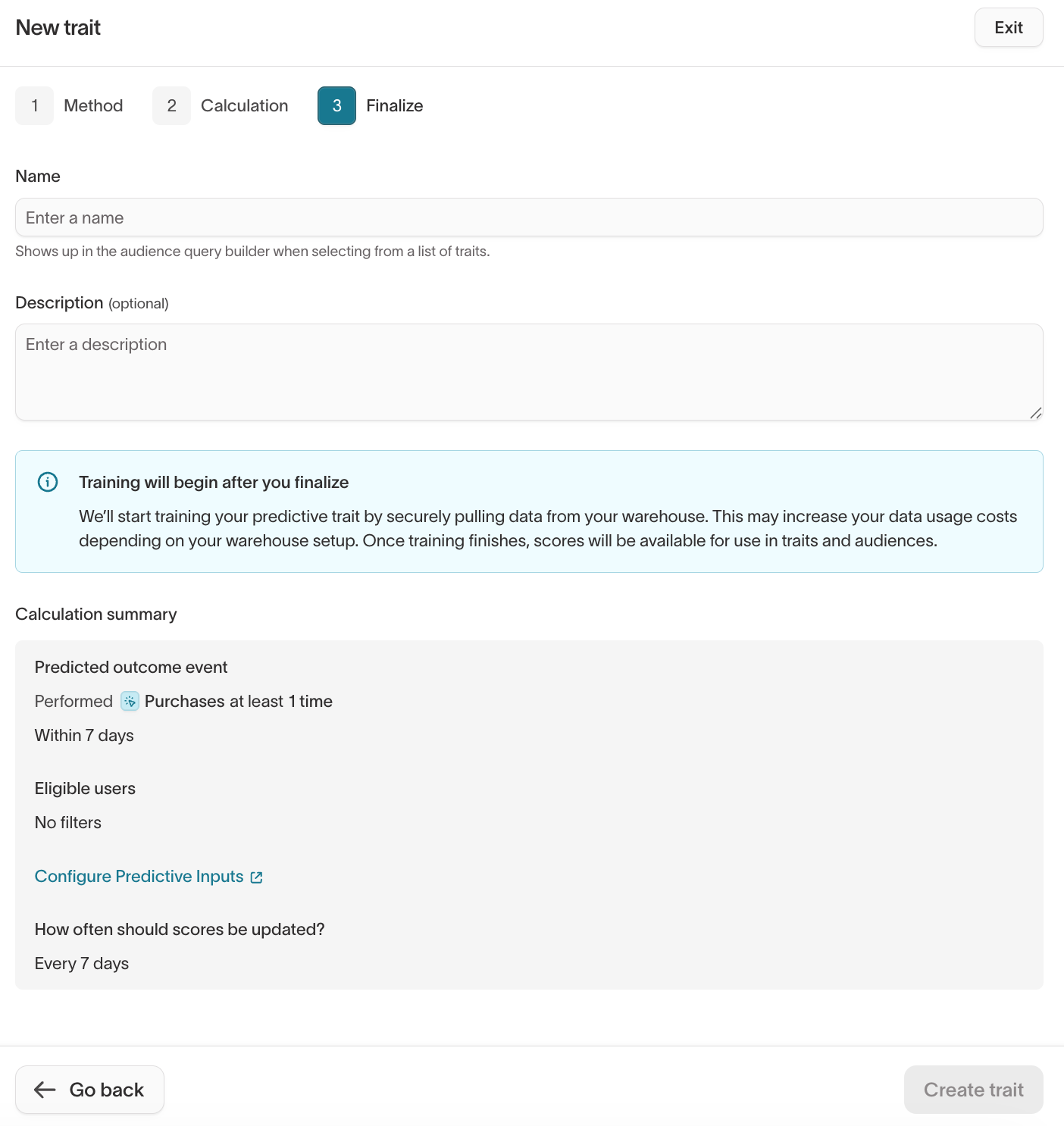
The system trains a model using your data and generates predicted scores for each user. Training typically takes several hours but will vary based on warehouse size and the amount of data being processed.
View and use predictive traits
After training completes, predictive traits appear in the Traits list with type Predictive.
You can:
- Preview results in the trait details page
- Use in audiences by filtering on score thresholds or percentile ranges
- Sync predictions to destinations such as ad platforms, ESPs, or CRMs for activation
Analyze predictions
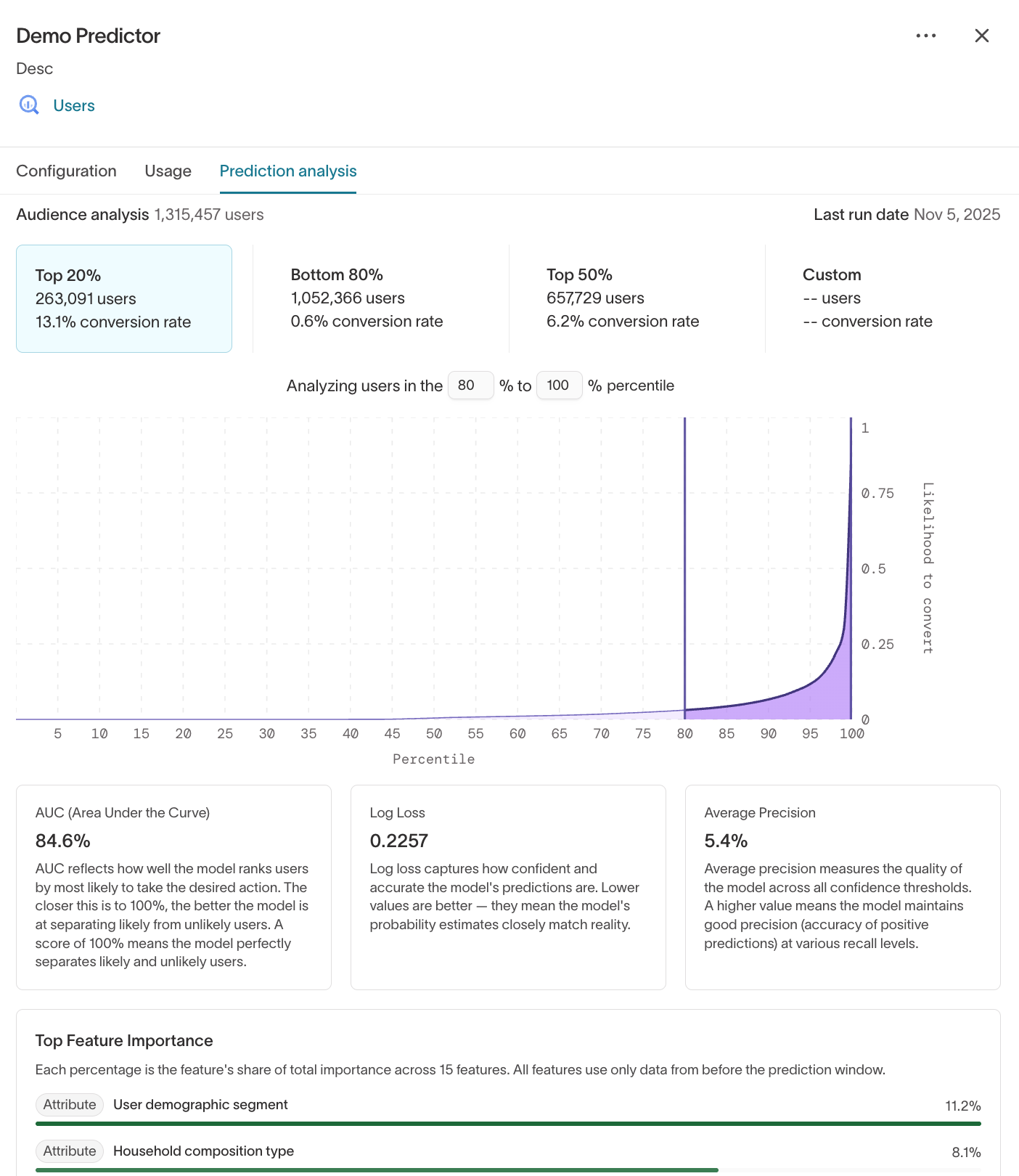
After the model finishes training, the Prediction analysis tab on the trait detail page displays performance metrics. The page shows the total number of users scored and the last run date. Below these stats, you can explore results at different score thresholds.
Percentile buckets
The analysis page shows preset score buckets — Top 20%, Bottom 80%, Top 50%, and a Custom option. Each bucket displays the number of users in that tier and their conversion rate. Use these to gauge how concentrated predictive value is at the top of the distribution and to choose effective thresholds for targeting.
Model metrics
The analysis page displays three model performance metrics:
- AUC (Area Under the Curve) — Measures how well the model separates users who will perform the predicted action from those who won't. Values closer to 100% indicate stronger separation.
- Log Loss — Measures how confident and accurate the model's predictions are. Lower values are better — they mean the model's probability estimates closely match reality.
- Average Precision — Measures the quality of the model across all confidence thresholds. A higher value means the model maintains good precision across a range of recall levels.
Top Feature Importance
The analysis page also lists the features that contribute most to the model's predictions, ranked by their share of total importance. This helps you understand which user properties and events drive the model's scoring.
Use percentile thresholds to build high-value segments. For example, create an audience of “Top 20% purchase propensity” users and sync them to ad channels for efficient spend.
Use predictive traits in audiences
You can use predictive traits when defining audiences the same way you use other traits.
- Go to Customer Studio → Audiences and click Add audience.
- In the audience definition, select a trait.
- Set the score range or percentile range you want to include (for example, 80–100%).
- (Optional) Combine the predictive filter with other attributes, such as
country = USorplan_type = paid.
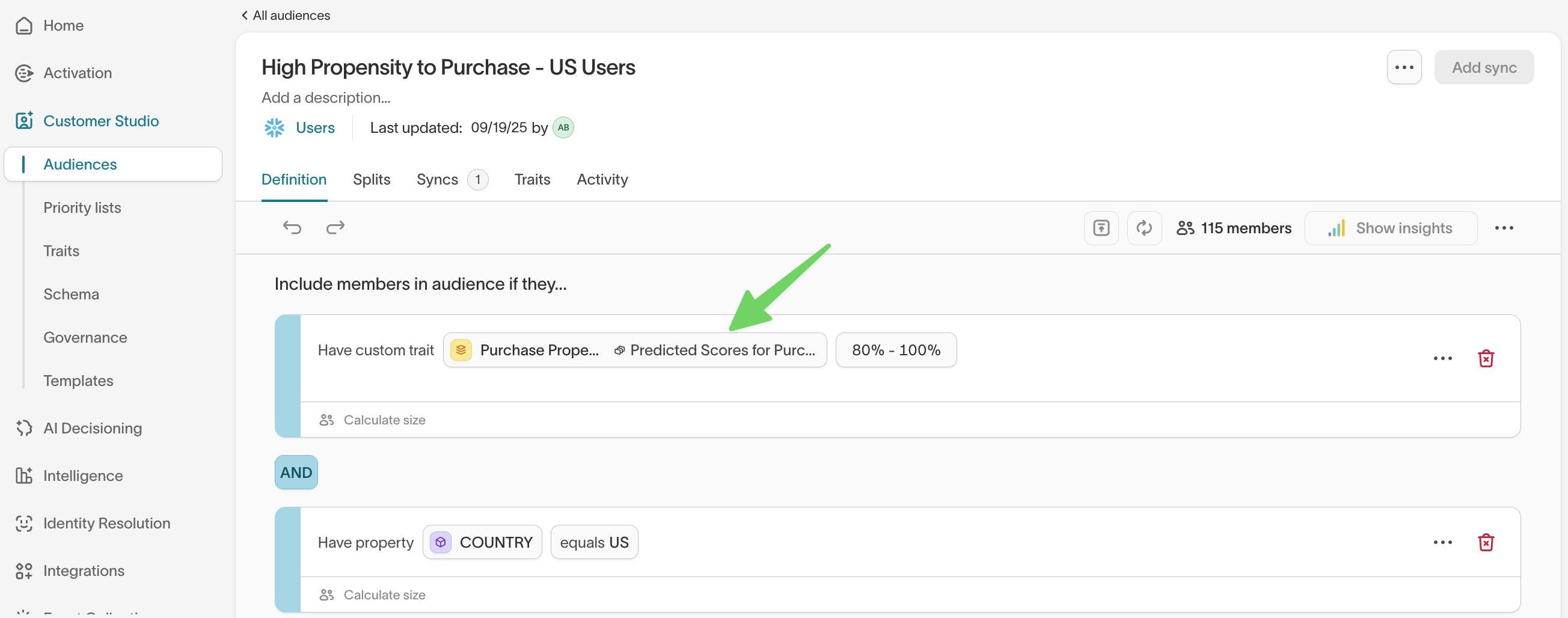
Predictive traits can be layered with demographic or behavioral conditions, giving you highly targeted segments. For example:
- High propensity to purchase + specific geography (US, Canada)
- Cart completion propensity + recent site activity (visited in the last 7 days)
Predictive traits update on a schedule. Between updates, some people may
complete the action you’re predicting (like making a purchase) but their score
won’t change until the next update. To keep your audience focused on people
who haven’t yet acted, add a filter to exclude people who have already
performed the predicted event (e.g, Purchases = 0 or Purchases (in last 7 days) = 0). This helps make sure your campaign only includes users who are
still likely to take action.
Sync predictive audiences
Once you define an audience with predictive traits, you can sync it to any connected destination the same way you sync other audiences.
For example, you might sync:
- High purchase propensity users to Google Ads or Meta Ads for paid acquisition
- High cart completion propensity users to an ESP for checkout reminder emails
When syncing, predictive scores are included alongside user attributes so downstream tools can use them directly.
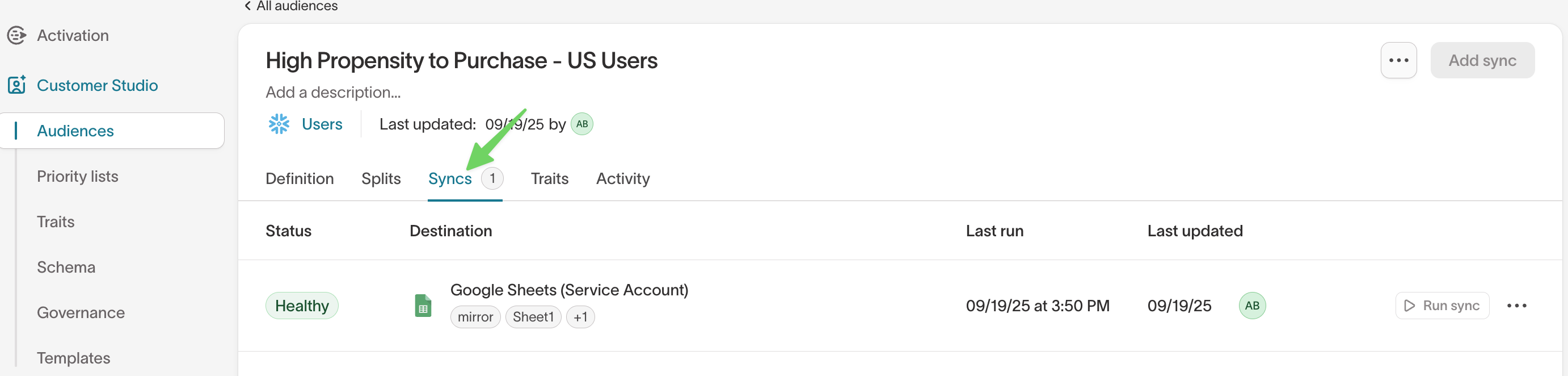
After syncs run, you can monitor performance and health in the Syncs > Overview tab.
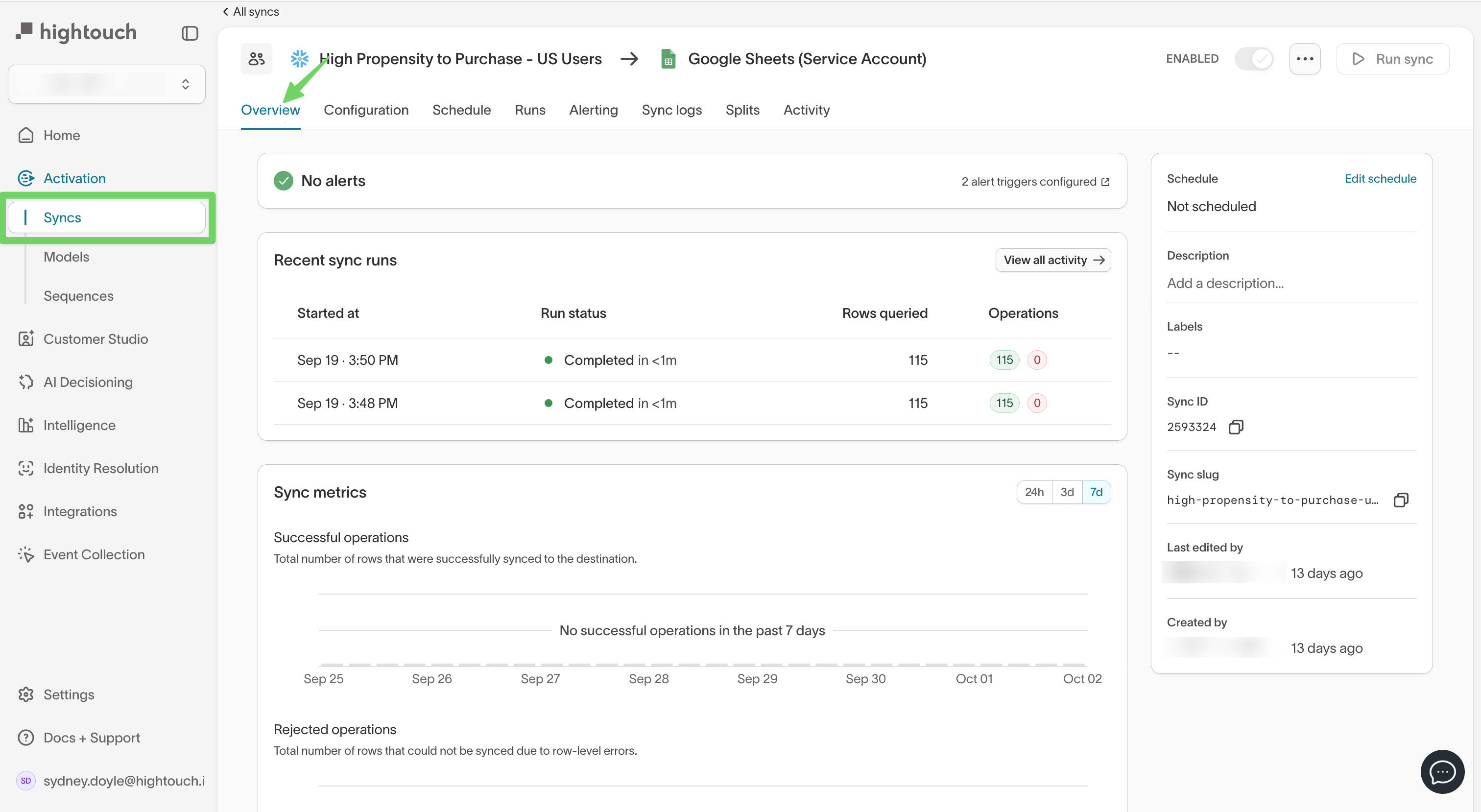
You don’t need to configure anything special for predictive traits when syncing--they behave like any other trait and can be mapped directly to destination fields.